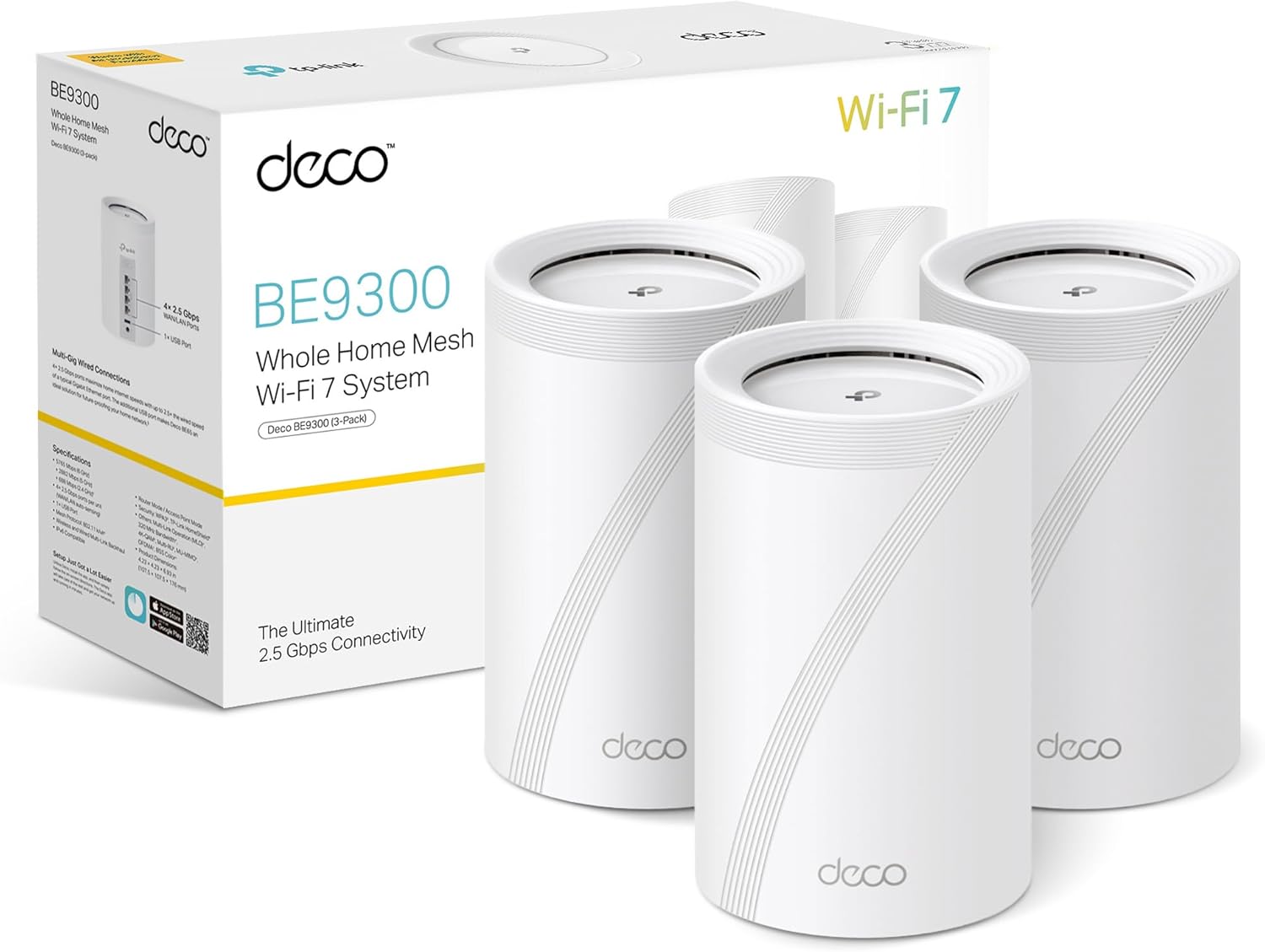
The Short Answer
Three months in and yes, the TP-Link Deco BE9300 has made a real difference in my home. Not where I expected it to, though. Internet speeds were never the problem. What changed is how fast files move around the house, and how much smoother things feel for the kids when they are gaming. If you are thinking about upgrading to Wi-Fi 7 mesh, here is what actually matters, what to watch out for when buying, and how to get the thing set up.
Prerequisites
Before you start, make sure you have the following in place.
- A smartphone running iOS or Android, with internet access available during setup (mobile data is fine)
- A free TP-Link ID, which you can create inside the Deco app during setup
- A modem or ONT (the box your ISP installs) with a spare Ethernet port
- At least one Cat 5e or Cat 6 Ethernet cable. The box includes one, but if you want wired backhaul between nodes or a wired NAS connection, you will need additional cables
- If you want the internal transfer speed benefit: your NAS must support 2.5 GbE, and the PC or Mac you are transferring to must also have a 2.5 GbE network card. A standard gigabit NIC will still bottleneck at 1 Gbps regardless of the router
- If your ISP connection is faster than 1 Gbps, for example Toob’s 2.5 Gbps service, confirm your ONT or modem presents a 2.5 GbE handoff. Otherwise the bottleneck is upstream of the router entirely
- The TP-Link Deco app, available free on the App Store and Google Play
The Port Warning Nobody Tells You About
This is the most important thing to understand before you buy any Wi-Fi 7 mesh router, not just the Deco BE9300.
Many Wi-Fi 7 mesh systems come with only a single 2.5 Gbps port per unit. If you plug your ISP connection into that port, it consumes your only multi-gigabit port, and every other device you wire up is left with standard 1 Gbps ports. If you are on a 2.5 Gbps ISP connection such as Toob, your wired devices are immediately bottlenecked back down to 1 Gbps. You have paid for faster broadband and faster hardware, and the router itself becomes the weak point.
Speaking of Toob, if you want a £25 off voucher, sigh up with my referal link, it costs you nothing ad we both ger a £25 voucher so its a win win - Toob £25 voucher
The Deco BE9300 avoids this problem. According to TP-Link’s official UK specs , each unit has four 2.5 Gbps WAN/LAN auto-sensing ports. Plug your ISP line into one, and the remaining three ports are still running at 2.5 Gbps. You can wire up a NAS, a games console, a smart TV, and run a wired backhaul cable to the next node, all without creating a new bottleneck.
When comparing routers, count the 2.5 Gbps ports. One is not enough if you want to connect more than your ISP line at multi-gig speeds.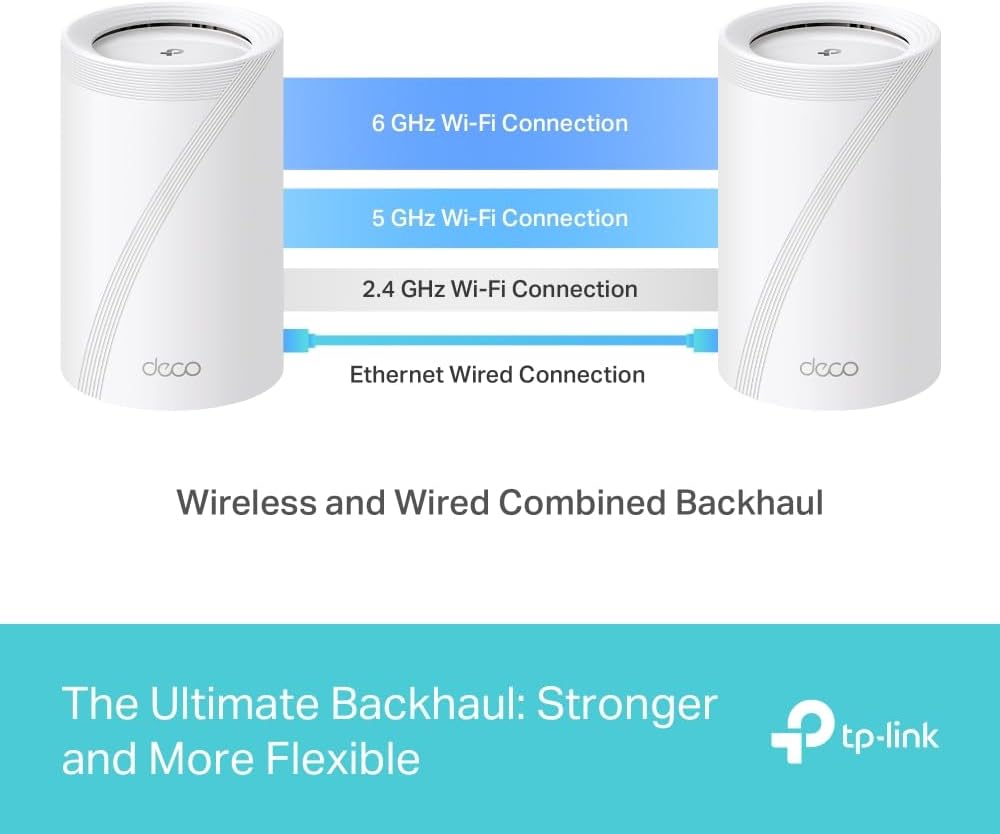
Setting Up the Deco BE9300
The setup process is app-guided and straightforward. These steps follow the official TP-Link setup documentation .
Download the Deco app on your phone and log in with your TP-Link ID. If you do not have one, create it inside the app. Keep your phone connected to the internet throughout this process.
Tap the + button in the top right of the app homepage, then select Create a Network.
Plug in your primary Deco unit and wait until the LED pulses blue. The app will detect it automatically and prompt you to connect.
Power off your modem or ONT, connect the Deco to it using an Ethernet cable, then power the modem back on. If your ISP delivers broadband via a wall Ethernet socket rather than a modem, connect the Deco directly to that socket.
Follow the app prompts to enter your broadband connection type if asked. Most UK fibre connections use DHCP, but PPPoE credentials are needed for some providers. Your ISP welcome letter or account portal will confirm which.
Add further nodes by plugging them in one at a time. The app detects each new unit and lets you assign it a room label. Place nodes where coverage is needed rather than where cables are convenient. Wired backhaul, running a Cat 6 cable from one node’s LAN port to the next, gives better throughput between nodes than wireless backhaul if your home allows it.
Set your firmware update window inside the app. Choose a time when the network is quiet, typically overnight, so updates do not interrupt anyone mid-session.
Check OFDMA and MU-MIMO are enabled. These features improve performance when multiple devices are active simultaneously. Some BE9300 variants have them disabled by default. Go into the advanced settings in the Deco app and confirm they are switched on.
Optional: USB and NAS Sharing
Each Deco unit has a USB 3.0 port. You can plug a USB drive into this to create basic network storage. To access it, open the Deco app and go to More, then Advanced, then USB Sharing. Enable Network Neighbourhood and devices on your network can reach the drive at \\TP-Share on Windows or smb://TP-Share on a Mac. TP-Link’s support guide covers this in full
. This is not a replacement for a dedicated NAS, but it is useful for a shared media folder.
Verification
Once setup is complete, run through these checks.
- Open a speed test, such as fast.com or speedtest.net, on a device connected to the Deco and confirm the result matches your expected broadband speed.
- On a wired device, confirm the link speed is showing 2.5 Gbps and not 1 Gbps. On Windows, check this in Settings, then Network and Internet, then Advanced Network Settings. On a Mac, hold Option and click the Wi-Fi or Ethernet icon in the menu bar.
- If you have a 2.5 GbE NAS, copy a large file from it to a wired PC and watch the transfer rate. If it is sustaining above 100 MB/s you are past the old gigabit ceiling. If it caps at around 118 MB/s, something in the chain is still gigabit.
- Open the Deco app and confirm each node shows as online and that firmware is on the latest available version.
- Walk between rooms and check that roaming between nodes does not cause a noticeable drop. If it does, see the troubleshooting section below.
What Actually Changed After Three Months
My internet speeds were already fine on a 1 Gbps connection. Moving to a router with 2.5 Gbps ports makes no difference to internet performance if your ISP line is still delivering 1 Gbps. That is exactly what happened here, and it is expected. If your broadband is under a gigabit, you will not see any change in download or upload figures.
What did change is internal file transfers. Moving files between the NAS and a PC, or between a Mac and a PC, is noticeably quicker. I want to be straightforward: I have not run controlled benchmarks. This is an observed real-world improvement consistent with what the 2.5 Gbps wired ports make possible, not a lab-measured result.
The other area is gaming. The kids say latency feels better. I cannot give you a measured before-and-after ping figure because I do not have one. What I can say is that this is plausible. When a gigabit LAN is carrying heavy traffic from multiple devices, there is very little headroom left for game packets, and queues build up . A 2.5 Gbps LAN clears that traffic faster. The BE9300 also supports Multi-Link Operation (MLO) , a Wi-Fi 7 feature that sends and receives data across multiple bands simultaneously to reduce latency. Whether that specifically is what the kids are noticing, I cannot say for certain. The subjective improvement is real to them.
Troubleshooting
The BE9300 is a solid bit of kit, but it has had some firmware-related problems worth knowing about before you buy.
Firmware update breaks ISP connection. A specific firmware build caused units to lose their ISP connection entirely. The fix was rolling back to the previous version via the app or TP-Link’s download page. This has been documented in the TP-Link community forums . Always check the community forums before accepting a firmware update if your setup is working well.
EasyMesh conflict after update. Following one firmware release, some users found that disabling EasyMesh in the app resolved connectivity problems introduced by the update.
NAS and LAN performance degradation. One firmware version caused periodic lag, slow applications, and smart home sensors dropping out. The TP-Link community confirmed the firmware was the cause , and connecting devices directly to a switch bypassing the router resolved the symptoms. If LAN performance suddenly worsens after an update, check the firmware version and consider rolling back.
Upload speed regression. Firmware 1.3.1 introduced a significant upload speed drop in some environments. TP-Link’s own firmware changelog confirms that version 1.3.3 addressed this , alongside a fix for IPv6 RS packet flooding from iOS devices causing crashes. Keep firmware up to date, but monitor performance after each update.
Roaming drops between nodes. Some users have reported a signal drop when walking between nodes. Client devices need to support 802.11k/v/r for smooth roaming. Most modern phones and laptops do, but older devices may not hand off cleanly. If this is an issue, check whether band steering is enabled in the Deco app.
Bufferbloat under upload load. If someone in the house is backing up to the cloud, uploading large files, or streaming at high bitrate, you may notice web pages hesitating or game latency spiking even though download speeds look fine. This is bufferbloat, where a saturated uplink causes queues to build. The fix is to enable QoS (Quality of Service) in the Deco app and prioritise gaming or video call traffic.
Related Notes
The Deco BE9300 is sold in the UK as the Deco BE65 and is available in 2-pack or 3-pack configurations. A single unit works as a standalone router. For most homes, a 2-pack covers two floors comfortably with wired backhaul. If you are thinking about buying one consider using my affiliate link, it help support the site and costs you nothing. Deco 3 Pack on Amazon
The system is tri-band Wi-Fi 7, combining 5,765 Mbps on 6 GHz, 2,882 Mbps on 5 GHz, and 688 Mbps on 2.4 GHz for a combined headline throughput of roughly 9,300 Mbps . It supports 320 MHz channels on the 6 GHz band, double the 160 MHz maximum available on Wi-Fi 6E. Each unit draws a maximum of 27.5 W.
If you are buying this to get faster internal file transfers, the router alone is not enough. Your NAS, your network switch if you use one, and the network card in your PC or Mac all need to support 2.5 GbE. The router is one link in that chain.
If you are connecting an Android phone to a Mac for file transfers across your network, I have a separate guide on how to connect your Android phone to your Mac .