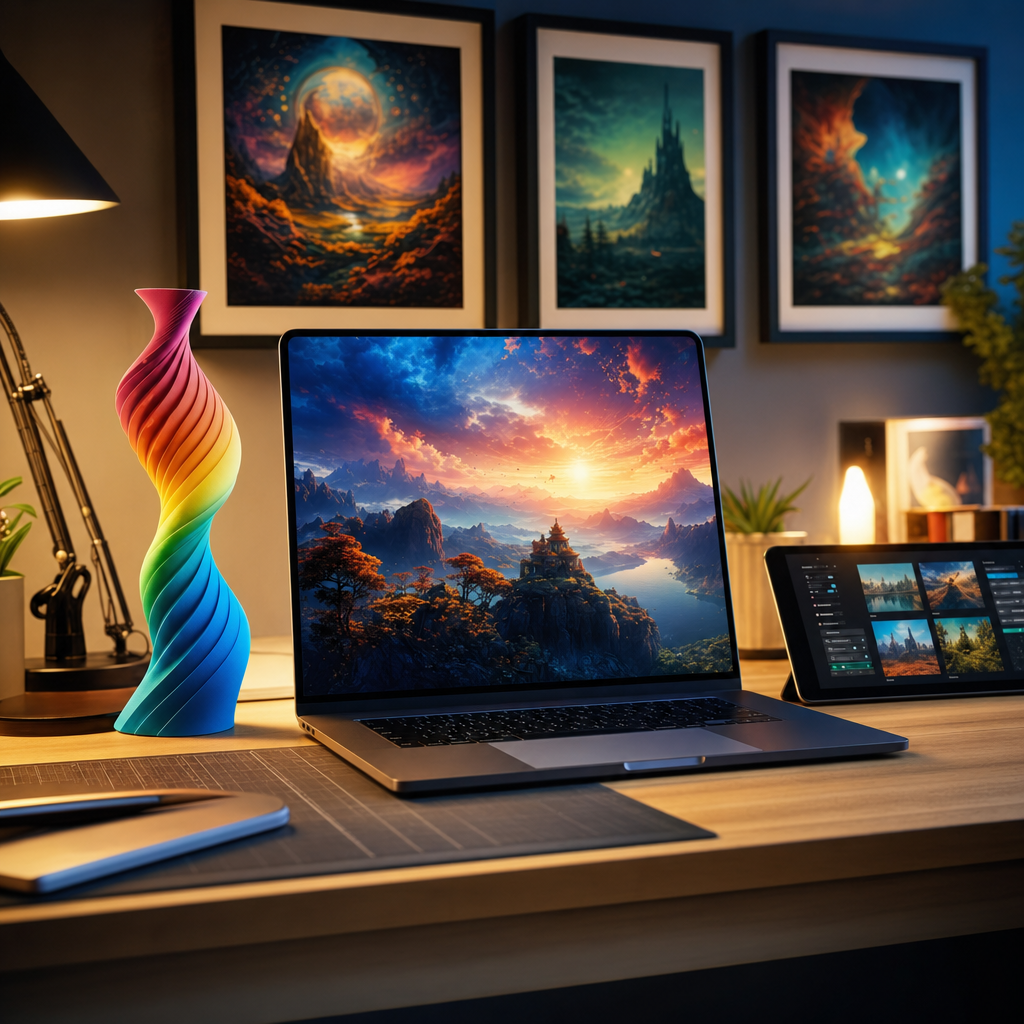
Something shifted in our house a few months back. I can’t pinpoint the exact moment, but somewhere between a birthday card deadline and a conversation about what to hang on the newly painted hallway wall, we stopped scrolling through stock image sites and started making things ourselves. Not with a paintbrush or a design degree, just with AI, a bit of patience, and a 3D printer humming away in the garage.
If you’ve been curious about AI image generation but assumed it was either too expensive, too complicated, or produced results that looked like a fever dream, I get it. I had the same reservations. But the tools have quietly got very good, and the gap between “person who can’t draw a straight line” and “person who can produce something genuinely worth framing” has narrowed to almost nothing. Here’s how we actually use it at home, what tools I’d point you towards, and how to turn those images into something physical.
Before You Start
You don’t need any design experience, but it’s worth having a clear idea of what you’re making before you open a browser tab. Is it something you’ll print at home, send to a print shop, or use as a reference for a 3D print? The answer changes which tool fits best and how fussy you need to be about resolution from the start. Also worth knowing: most of these tools generate images at relatively low resolution by default, which means upscaling is almost always part of the workflow before anything gets printed. I’ll cover that below.
Step 1: Choose the Right Tool for Your Project
The honest answer is that no single AI image generator wins at everything, so it’s worth matching the tool to the job.
ChatGPT (GPT Image / DALL·E) is where I’d start most people. The Plus plan costs approximately £20 per month in the UK, though it’s charged in USD, so the exact amount on your bank statement can shift slightly depending on exchange rates. Worth checking at checkout. What makes it genuinely useful for families is how conversational it is. You generate an image, decide you want the sky a different colour, and just say so. It iterates with you rather than making you start over. It’s also the strongest option I’ve found for getting readable text inside an image, which matters a lot for birthday cards and anything with a name or message on it.
Midjourney is where you go when you want something that looks visually striking. The Basic plan starts at $10 per month (billed in USD), which gets you roughly 200 images a month. It produces the most consistently impressive results for wall art, particularly anything with a strong artistic style. One important caveat for family use: by default, everything you generate in Midjourney is publicly visible on their website. If you’re generating personalised content, portraits, or anything you’d rather keep private, that’s worth knowing. Private generation (Stealth Mode) only comes with the Pro plan at $60 per month.
Google Gemini is worth mentioning for anyone who wants to dip their toe in without spending anything. The free tier gives you a handful of images per day, and the quality is genuinely solid for a no-cost starting point. Good for experimenting before you commit to a paid plan elsewhere.
Ideogram handles text in images reasonably well, and unlike Midjourney, the free plan (up to 12 prompts per day) gives you commercial usage rights on everything you make. It’s slower on the free tier and your images are public, but it’s a legitimate option for birthday cards and personalised prints without spending a penny.
Microsoft Designer / Bing Image Creator is entirely free with a Microsoft account and is worth knowing about if you just need something quick. It’s powered by DALL-E and, since October 2025, also includes Microsoft’s own MAI-Image-1 model. Not the most sophisticated option, but free is free.
Step 2: Write a Prompt That Actually Works
This is where most people get stuck first. The AI needs specificity. Vague prompts produce vague results.
Instead of “a nice landscape”, try something like: “A misty Scottish loch at golden hour, oil painting style, dramatic clouds, rich earth tones, highly detailed, wide format.” The more you describe the mood, style, medium, lighting, and colour palette, the more control you have over the output.
For birthday cards with names or messages, keep the text short. One or two words is ideal. “Happy 13th” will render more reliably than a full sentence. ChatGPT handles this better than most, but even there, check the output carefully for typos or scrambled letters. It still happens.
For 3D printing reference images, you’re usually generating a concept or a texture rather than a final design. I use AI to generate decorative panel ideas, tile patterns, and figurine concepts, then bring those into the slicer or CAD software as visual references. The AI image is a starting point, not the end product.
Generate several variations before you settle on one. Most tools let you run multiple outputs from the same prompt, and the difference between them can be significant.
Step 3: Upscale Before You Print
This is the step people skip and then wonder why their printed image looks soft or pixelated. AI image generators typically output files that look fine on a screen but fall apart when printed at any meaningful size.
The general rule for printing is a minimum of 150 DPI at your target print size. Most AI outputs need upscaling to hit that comfortably.
The tool I’d recommend for beginners is Upscayl, which is free and open-source. It uses machine learning to add detail rather than just stretching pixels, and a 2x or 4x upscale is enough for most home printing purposes. After upscaling, zoom in and check faces, edges, and any gradients. These are the areas that show problems first.
If you want something more powerful and are printing at large sizes, Topaz Gigapixel AI is desktop software that produces excellent results, and Let’s Enhance is a web-based alternative. Both are paid options but worth it if quality matters.
Step 4: Prep and Print
Once your image is upscaled, if you’re printing at home, export as a high-quality JPEG or TIFF. TIFF is better if you’re sending to a print shop or want the absolute best quality for large canvas prints.
For wall art, I print on my home setup for smaller pieces and use an online print service for anything going on a canvas or larger format. Most services have file upload portals with size guides. Just make sure your DPI is solid before you upload and you’ll avoid any nasty surprises when it arrives.
For birthday cards, I size the image to A5 or A6 in something like Google Slides or even Microsoft Word, add any text I want around the image, and print double-sided on card stock. It takes about ten minutes once you’ve got the image sorted.
For 3D printing, the workflow is slightly different. The AI image is my reference, and I use it alongside my Bambu Lab P2S. I’m either using the image to guide a design I’m making in CAD, or I’m using a site like Printables or Thingiverse to find a base model and then customising the finish or aesthetic based on what the AI generated. It’s a creative back-and-forth rather than a direct pipeline.
If It’s Still Not Working
The text in your image is garbled. Switch to ChatGPT if you’re on another tool. Keep the text very short, and regenerate several times. Even the best tools struggle with longer phrases.
The printed image looks blurry or pixelated. You almost certainly need to upscale more. Run it through Upscayl again at 4x and recheck the DPI before printing.
The AI keeps generating something that looks nothing like what you described. Try breaking your prompt into smaller, clearer chunks. Describe one thing at a time: the subject, then the style, then the lighting. Reordering your prompt can sometimes make a significant difference.
Getting all of this right takes a couple of tries, but once you’ve run through the full process once, the whole workflow from prompt to printed image takes less than half an hour. That’s genuinely remarkable when you think about what used to require a professional designer and a print studio. If you hit a wall that I haven’t covered here, drop a comment or come find me through the newsletter and I’ll do my best to help.
If you want more practical guides like this one, including how I’m using AI tools for other projects around the house, sign up for the Tech Dads Life newsletter. It goes out regularly and is full of real-world tech advice for families who want to actually use this stuff, not just read about it. Join us at techdadslife.beehiiv.com .