The short answer
If you own a Bambu Lab printer, use Bambu Studio. If you own a Prusa, use PrusaSlicer. If you own anything else or you are just starting out, start with Cura. That is the practical answer. The longer answer depends on how much control you want, which printer you have, and whether you are willing to spend an hour learning a new interface to get better results.
All three slicers are completely free to download and use . There is no paid tier, no regional pricing, and no subscription. That makes this a pure decision about fit rather than budget.
What these slicers actually are
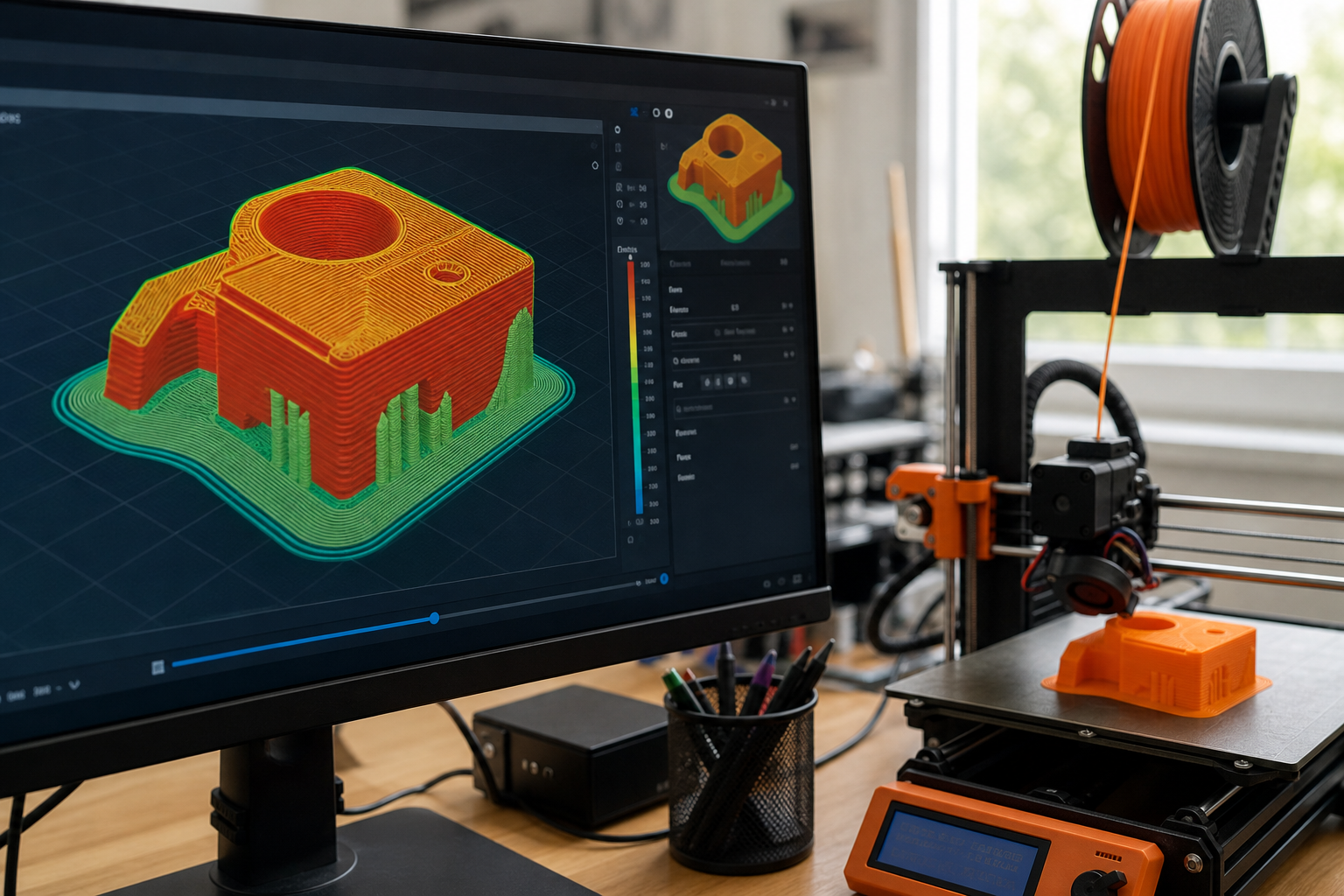
A slicer is the software that takes a 3D model file and converts it into the layer-by-layer instructions your printer needs to build it. Without a slicer, your printer has no idea what to do. Choosing the right one matters because the same model can print noticeably differently depending on which slicer generated the instructions.
The three slicers in this comparison share more history than most people realise. Prusa Research took an older open-source project called Slic3r and rebuilt it into PrusaSlicer , adding a better interface and features such as organic supports. When Bambu Lab launched their printers, they forked PrusaSlicer into Bambu Studio , tailoring it for their own ecosystem. Cura is a separate lineage, developed by UltiMaker, and has been around long enough to build the largest user base in the hobby.
Current stable versions at the time of writing are Cura 5.11.0 , PrusaSlicer 2.9.4 , and Bambu Studio (with version 2.8.4 Beta available on GitHub ). All three are open-source.
Which printer do you have?
This is the single most useful question to ask before downloading anything.
Bambu Lab printers: Use Bambu Studio. The integration is seamless in a way that genuinely matters in practice. A Bambu P1S or X1C owner gets calibrated pressure advance, input shaping, and flow values baked into the manufacturer profiles . Working that out manually in another slicer takes real time and effort. If you want to go deeper into calibration than Bambu Studio allows, OrcaSlicer (an open-source fork of Bambu Studio that works with a broader range of printers) is worth knowing about, but Bambu Studio is the right starting point.
If you are new to Bambu printers, I have a Bambu Studio beginner guide that walks through your first print without the jargon.
Prusa printers: Use PrusaSlicer. It is developed by the same company that made your printer, the profiles are precise, and the MMU3 multi-material workflow is handled natively. PrusaSlicer now supports over 80 third-party printers including Voron, Creality, and Sovol machines, so it is not exclusively a Prusa tool.
Creality, Anycubic, Elegoo, Artillery, and most other brands: Start with Cura. Cura natively supports hundreds of printer models across dozens of brands and the guided setup makes it the gentlest entry point into 3D printing. Once you have a few prints under your belt and want more control, PrusaSlicer is worth trying.
Ease of use for beginners
Cura wins here. The guided marketplace, the Recommended versus Custom settings toggle, and the sheer breadth of community tutorials make it the friendliest option if you have never sliced a model before . You can get a print started without touching anything beyond the basic controls, and if something goes wrong there is almost certainly a YouTube video that addresses exactly your problem.
Bambu Studio is the easiest option if you own a Bambu printer, but that ease comes from the printer-software integration rather than the interface design itself. The UI is slightly busier than PrusaSlicer’s because it includes Bambu-specific panels, and some features from the original PrusaSlicer codebase have been reorganised in ways that do not always make sense outside the Bambu ecosystem .
PrusaSlicer’s default view is less guided than Cura’s and the learning curve is steeper at first. However, once you are past the initial unfamiliarity, the settings are well-grouped and the tooltips are more detailed than Cura’s. It rewards the hour or two you spend learning it.
Feature depth for when you want more control
All three slicers support tree supports, ironing for smooth top surfaces, the Arachne perimeter generator, and adaptive layer height. The differences show up in the details.
Cura’s slicing speed is the slowest of the major slicers on complex models , which becomes noticeable on large prints. Multi-material printing in Cura requires a third-party add-on or manual filament swaps. Calibration utilities like pressure advance and flow towers exist only as community plugins rather than native features.
PrusaSlicer’s print quality matches or slightly exceeds Cura’s, with cleaner overhangs and less stringing, and print times run roughly 8% faster than Cura across comparable models . The 2.9.3 release introduced a Consistent Surface cooling mode for improved outer wall quality on fast layers and short travel acceleration to reduce ringing, which gives you a sense of how actively the feature set is being developed. Remote monitoring is handled via PrusaConnect rather than a built-in panel.
Bambu Studio is the gold standard for AMS multi-colour printing if you own Bambu hardware. Cloud slicing and built-in remote monitoring are native features rather than bolt-ons. For non-Bambu printers, though, the cloud integration simply does not work and the interface becomes less compelling as a result.
What about OrcaSlicer?
It is worth a brief mention because multiple comparison sources flag it as a fourth major player . OrcaSlicer is an open-source fork of Bambu Studio that works with a much broader range of printers. Many Bambu owners run both: Bambu Studio for everyday workflows and OrcaSlicer when they want deeper calibration tools. If you find yourself outgrowing Bambu Studio but do not want to move to PrusaSlicer, OrcaSlicer is the natural next step. I have not covered it in depth here because the focus of this comparison is the three main options, but it is genuinely worth knowing about.
Longevity and profile portability
If you care about not having to start from scratch if the software changes, this matters. PrusaSlicer is arguably the most likely of the three to still be actively maintained in five years , given Prusa Research’s track record with open-source software. Cura is backed by UltiMaker and is unlikely to disappear, though development has slowed. Bambu Studio’s future is tied to Bambu Lab’s commercial decisions, which is worth factoring in if you are building a library of custom profiles.
On portability: Cura profiles do not migrate cleanly to other slicers. PrusaSlicer profiles work in OrcaSlicer with minimal adjustment, and Bambu Studio profiles are largely compatible with OrcaSlicer too.
Quick decision table
| Your situation | Recommended slicer |
|---|---|
| Absolute beginner, any printer | Cura |
| Bambu Lab owner | Bambu Studio |
| Prusa owner | PrusaSlicer |
| Mixed printer fleet | Cura or OrcaSlicer |
| Support quality is a priority | PrusaSlicer |
| Heavy AMS multi-colour workflow | Bambu Studio |
Framework adapted from trify3d.com and craftgineer.com .
What to do next
Download the slicer that matches your printer from the table above and install it. All three are free, so there is no risk in trying more than one. If you are a Bambu owner who has not yet read through the basics of the software, the Bambu Studio beginner guide is a good place to start before you get into the comparison details.
If you are still deciding which printer to buy and the slicer ecosystem is part of that decision, the Bambu Lab vs Creality vs Prusa brand comparison covers how the hardware choices stack up, which should help you land on the right slicer by extension.