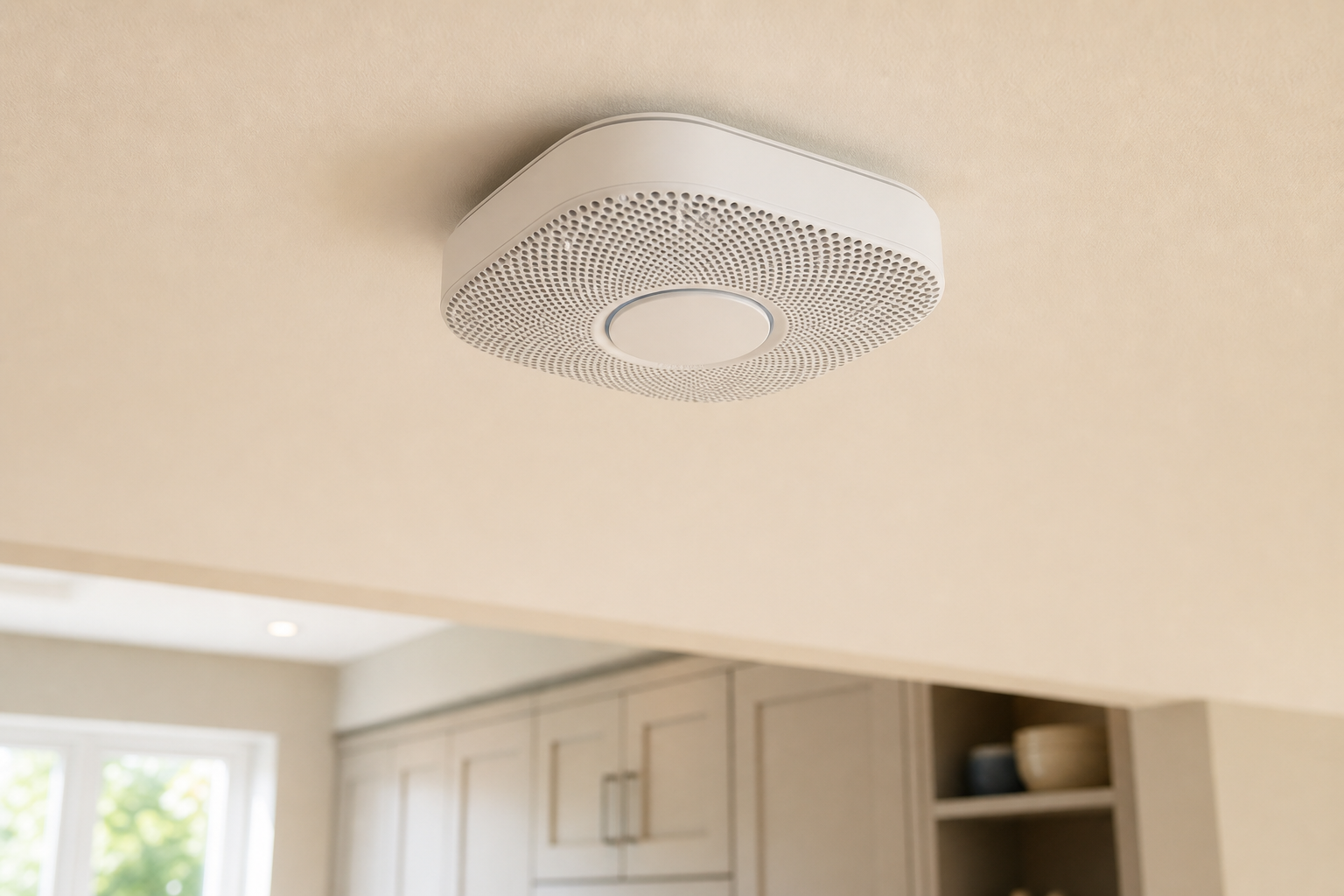
Check Your Nest Smoke Alarms: Mine Silently Disconnected for 4 Months
Answer-First Summary
Open the Nest app or Google Home app, tap each Nest Protect, and check the internet connection status and last-connected timestamp. If any unit shows as grey and “Offline”, it has lost its Wi-Fi connection. There is no proactive push notification when a Nest Protect goes offline , so the only way to discover the problem is by opening the app or noticing the yellow LED ring on the device itself. The good news: Nest Protect will still sound locally and interconnect with other units if it detects smoke or carbon monoxide, even without a Wi-Fi connection . What you lose is remote alerts, phone notifications, and the ability to check status without physically walking up to the unit.
This article covers Nest Protect only. Google has discontinued support for Nest Secure, which is a separate product. Nest Protect is no longer sold new but remains supported.
Prerequisites
- A Google account linked to your Nest Protect devices.
- Either the Nest app or the Google Home app installed and signed in. Both apps can check Nest Protect status. It is worth checking both, because community reports confirm cases where units show offline in one app but online in the other .
- Both apps updated to the latest version. If you have not updated in a while, uninstall and reinstall to be certain.
- Nest Protect connects to Wi-Fi on 2.4 GHz only . It does not support 5 GHz. This matters for troubleshooting later.
Step-by-Step: How to Check and Restore Your Nest Protect Connection
1. Check status in the Nest app. Open the Nest app and sign in. On the home screen, tap the Protect icon for each unit . A panel opens showing the status of your carbon and smoke alarms, battery and sensor health, the date and time of the last test, and the internet connection. Swipe left or right to move between units. Any unit showing grey with an “Offline” label has lost its Wi-Fi connection. Note the last-connected timestamp so you know how long it has been disconnected.
2. Cross-check in the Google Home app. Open the Google Home app, tap Home, then Smoke CO . Select each Nest Protect in turn. This view shows how long ago the unit was last online. Because the two apps can occasionally report different statuses, checking both gives you a more reliable picture.
3. Run a manual network test at the device. If a unit is showing offline, go to it physically. Press and hold the button until you hear the device say “Checking the network. Just a moment,” then release . The light ring glows blue during the test. After a few moments it will glow green if the connection succeeds, or yellow if there is still a problem. If it cannot connect, it will say “Try again later” and show a yellow light. A quick press and release, rather than a hold, may cause the unit to announce “Nest Protect is disconnected from the internet” if it is offline.
4. Run a Safety Checkup. Safety Checkup tests the sensors, power, Wi-Fi connection, speaker, horn, and light ring . In the Nest app, select your Protect on the home screen and tap Checkup at the bottom. If the checkup cannot finish, that is a strong signal that the Wi-Fi connection is the issue. Safety Checkup via the app is available for 2nd generation Nest Protect. You can also press the Nest button on any generation to run a basic check at the device.
5. Reconnect a disconnected unit (2nd generation). If the unit is offline because your Wi-Fi password or network name changed, open the Nest app, tap Settings, select your Protect, go to Device options, tap Wi-Fi connection , then tap Next and follow the prompts to select your network and re-enter the password. If the Wi-Fi connection option does not appear under Device options, you likely have a 1st generation Nest Protect. For 1st gen units, you will need to remove the Protect from your account and re-add it from scratch.
6. If the unit is already online, note the check-in cadence. Battery-powered Nest Protects test their Wi-Fi connection once per day. Wired units test every 30 minutes . A battery unit could be offline for up to 24 hours before its daily check flags it, and without a push notification to pull you into the app, that can stretch into weeks or months.
7. Last resort: factory reset and re-add. If nothing else works, restart your phone, ensure Bluetooth and Wi-Fi are both enabled, reopen the app, reset your Nest Protect to its default settings , and set it up again. This should be the final step, not the first.
Verification
Once you have worked through the steps, each Protect should display a green status in both apps, with a last-connected time of today or very recently. If a wired unit is still showing an old timestamp, treat it as still disconnected even if the light ring looks normal. The timestamp is the most reliable indicator.
Troubleshooting: Common Causes of Silent Disconnects
Changed Wi-Fi password or network name. If you have updated your router’s SSID or password and not updated the Protect’s settings, it will lose its connection silently . See Step 5 above for the fix.
DHCP lease expiry or IP address reassignment. This is one of the most commonly reported causes of recurring disconnects, where the router temporarily cannot renew the Protect’s IP address . The suggested fix is to assign a static or reserved IP address for each Protect in your router’s DHCP settings. The steps vary by router model.
Band-steering pushing the device to 5 GHz. Some routers actively try to move devices to the 5 GHz band, but Nest Protect only supports 2.4 GHz, so it loses its connection . If your router allows it, creating a separate 2.4 GHz-only SSID and connecting your Protect to that can resolve the issue. This is a commonly documented community fix but not tested on every router model.
Mesh network upgrade. Users on the Nest Community forums frequently report disconnects after switching to a mesh Wi-Fi system. A mesh upgrade often involves a new SSID or changes to how band-steering is handled.
Wireless interference. Large appliances, walls, competing networks, and other electronics can all cause intermittent disconnects . If a specific unit keeps dropping off, consider whether it is far from your router or near a source of interference.
Low or depleted batteries (battery models). Weak batteries can cause disconnections. Check the battery status in the app and replace if low.
Nest service outage. If multiple units appear offline simultaneously and you cannot identify a network cause, check the Nest System Status page . A service outage on Google’s end would affect all units at once.
Auto-reconnect is not guaranteed. If a unit has been offline for an extended period, it may not be able to reconnect to your network automatically . Do not assume it will sort itself out. If a unit has been offline for more than a few days, work through the reconnection steps manually.
A note on notifications. Smoke, carbon monoxide, and offline alerts from Nest Protect cannot be turned off in the app settings , yet many users report never receiving them reliably. If you are not getting notifications, check your phone’s OS-level notification permissions for both the Nest app and Google Home app. Do not rely solely on push notifications to tell you a unit is offline.
Related Notes
- The static IP and separate SSID recommendations are based on documented community fixes and third-party analysis. They are not tested on every router configuration, so treat them as starting points rather than guaranteed solutions.
- The most reliable prevention is a recurring manual check. Set a monthly calendar reminder to open both apps and review the status of every Protect. Pair this with the monthly Sound Check and Safety Checkup features , which test sensors, power, and Wi-Fi connection. Running Safety Checkup from the app takes a couple of minutes and catches connectivity problems early.
- If you are thinking about your broader smart home setup and how to keep things running without constant maintenance, my guide on how to set up a family smart home from scratch covers network decisions that make a real difference long-term, including how to handle 2.4 GHz-only devices cleanly.
- If you are also looking at other household costs around your smart home kit, the guide on how to cut your broadband bill without switching provider is worth a read, since a stable and well-maintained router setup helps with all of this.
- Always check both the Nest app and the Google Home app when diagnosing status issues. The two can report different states for the same device, and cross-referencing gives you a more reliable picture.