I was mid-build on a new project this week, a dictation device I’m calling Cue (more on that very soon), and I hit a wall. I needed to pull some test audio files off my Android phone and get them onto my Mac Mini M4 . Simple enough, right? Plug in the cable, job done. Except it absolutely was not job done. The Mac sat there, looked at my phone, and did precisely nothing.
If you’ve been there, you’ll know the specific frustration. It turns out this isn’t a bug, a dodgy cable, or user error. It’s a fundamental compatibility gap that’s been baked in for years, and it got significantly worse when Google quietly killed Android File Transfer in 2024. That app was the go-to workaround for a long time, and now it’s just gone. So here’s what actually works in 2026. Spoiler: in the end, what got me sorted was AirDrop, straight to my Samsung Galaxy S26 Ultra. More on that below.
Why Mac and Android Don’t Just Talk to Each Other
The root of the problem goes back to Android 4.3, when Google switched from classic USB mass storage to something called MTP (Media Transfer Protocol). With mass storage, your phone looked like a USB drive to any computer. With MTP, it acts more like a middleman, and macOS has never had native support for it.
Windows handles MTP without breaking a sweat. Macs don’t. Apple’s ecosystem is built around iPhones and AirDrop, so Android support has never been a priority. The result is that plugging an Android phone into a Mac with a USB cable used to require Google’s Android File Transfer app, and now that app is dead. You need a replacement.
Step One: Check Your USB Connection Mode on Android
Before you install anything, check this first. When you connect your Android phone to a Mac via USB, your phone will usually default to “Charging only” mode. That means your Mac won’t see any files at all.
Swipe down from the top of your Android screen, look for the USB notification, tap it, and change the mode to File Transfer (sometimes labelled MTP). If you skip this step, no software in the world will help you. It’s one of those things that catches everyone out at least once.
OpenMTP: The Free Wired Option
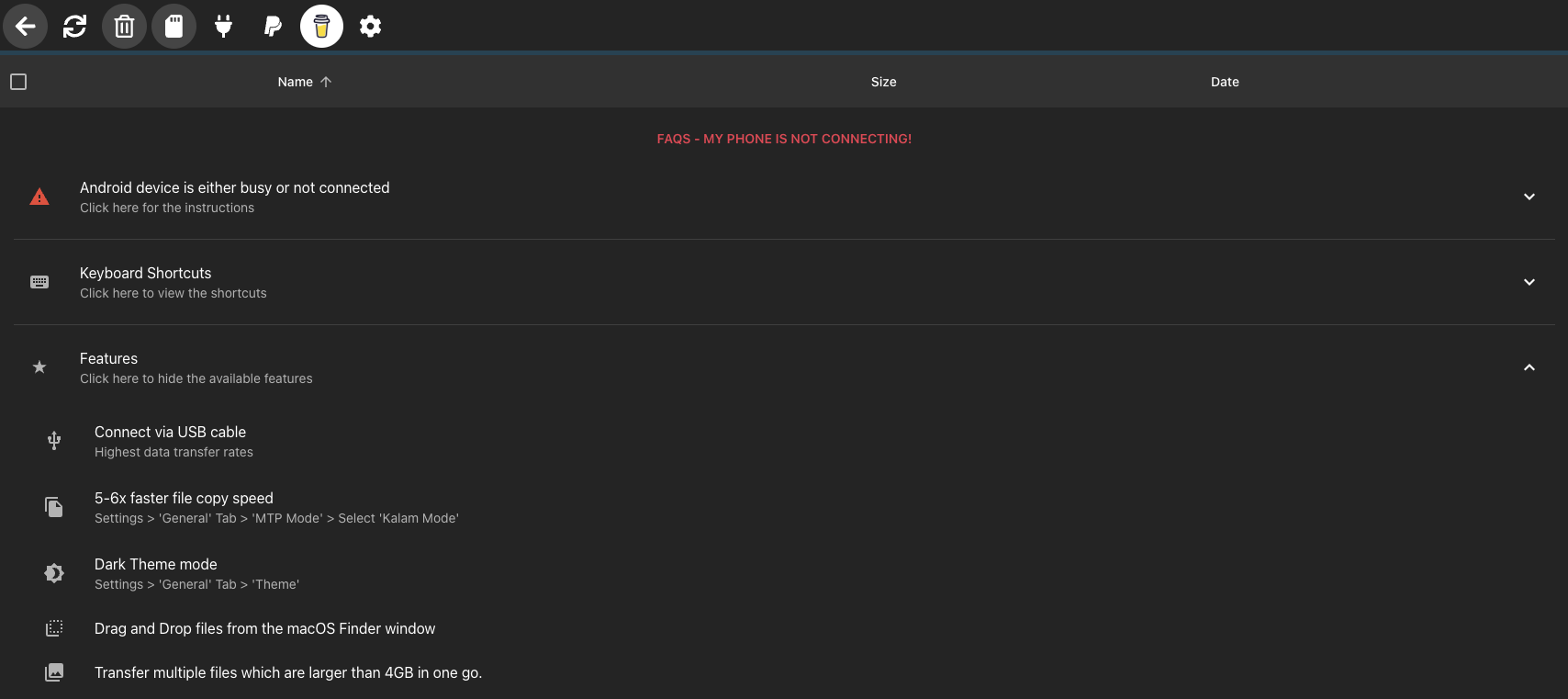
OpenMTP is a free, open-source app built specifically as an Android File Transfer replacement for Mac. The developer says it is free and always will be, and it is released under the MIT licence, so you can read exactly what it does. There is no trial, no subscription and no upsell.
It has a clean dual-pane interface, so you can see your Mac files on one side and your Android files on the other, then drag and drop between them. Other bits I like: it handles files larger than 4GB, has keyboard shortcuts, offers grid and list views, and has a dark theme. It runs natively on both Apple Silicon and Intel Macs, and the project’s GitHub page lists macOS 11 (Big Sur) or later, with a legacy mode for older systems. It isn’t only for phones either. It also works with things like Garmin devices and FujiFilm cameras.
On speed, the project claims it is around 5 to 6 times faster than Android File Transfer was. I didn’t benchmark it, and my own experience was rougher than that claim suggests (more on that below), but a decent cable plugged straight into your Mac rather than through a hub gives it the best chance.
To install it, head to the OpenMTP website
and download the Apple Silicon or Intel build to match your Mac. Not sure which you have? Click the Apple menu, choose About This Mac, and check the chip. If you use Homebrew, brew install --cask openmtp does the same job. Then plug in your phone, set it to File Transfer mode as above, and open the app.
A quick word on safety. Only download OpenMTP from the official site or its GitHub page. There are unofficial lookalike sites and download mirrors out there, and those are the real risk with any free app. The official builds are signed and notarised for macOS, and the code is public. The app does include anonymous usage analytics and crash reporting, and the developer says it collects no personally identifiable information. It can also update itself. If you’re on a Samsung phone, uninstall Samsung Smart Switch first, as it can stop OpenMTP from connecting.
I’ll be honest, it didn’t go well for me. The MTP connection to my phone was very unstable, and I’m not the only one. There are open reports on the project’s GitHub page of it failing to spot phones after macOS Sequoia updates, on Pixels and Samsungs alike. Switching to Legacy mode in its settings helps some people. It costs nothing and you can inspect the code, so it’s worth a go on a wired setup. If it works for you, brilliant. If it doesn’t, move on to the next option.
Pro: Completely free, open-source, native on Apple Silicon and Intel Con: Very unstable for me, and some users report it not detecting phones on recent macOS versions
MacDroid: The Polished Paid Option
MacDroid is the slickest solution I came across. Once installed, it mounts your Android phone directly in Finder, so it shows up like an external drive. No separate interface to learn, no drag-and-drop quirks. It just behaves the way you’d expect a USB device to behave on a Mac.
It supports MTP (standard USB connection), ADB (developer mode, faster and more reliable for power users), and Wi-Fi, so you have flexibility depending on your situation. If you’re doing this regularly, the Wi-Fi mode is genuinely useful because you’re not rooting around for cables.
There is a free version, but it only lets you copy files from your phone to your Mac. You need Pro to copy files onto the phone or edit them there. Pricing is in USD on the MacDroid website. At the time of writing it’s $19 per year for Pro, with a 7-day free trial, or a one-off lifetime licence for $34 (currently discounted from $49). Check the current price and any GBP conversion before you buy. It’s not free, but if you’re spending real working hours on Android-to-Mac transfers, it’s worth the outlay.
Pro: Mounts in Finder, supports Wi-Fi, has a free tier and a trial Con: Sending files to your phone needs the paid plan. Pricing is in USD
AirDroid: The Wireless, Cable-Free Route
If you’d rather stay off USB entirely, AirDroid is the wireless option most people end up settling on. You install the AirDroid app on your Android phone, then visit the AirDroid website in your Mac browser. Your phone appears in the browser window and you can browse files, download content, send texts from your Mac, and manage notifications.
It works over Wi-Fi, so there’s no cable required, and the setup takes about two minutes. The free plan covers most casual use. On the same Wi-Fi network AirDroid says there are no transfer restrictions, but away from your home network the free plan caps files at 30MB each and 200MB a month. If you’re just grabbing a handful of photos or audio clips at home, the free version is fine.
Pro: Completely wireless, browser-based, no Mac software to install Con: Free plan has tight limits away from your home Wi-Fi. Speed depends on your Wi-Fi
Google Drive: The One That Requires Nothing
If this is genuinely a one-off transfer and you don’t want to install anything at all, just use Google Drive. Upload from your Android phone, download on your Mac. It’s not elegant, it depends on your internet connection, and it’s not the right choice for large files. But for grabbing a single document or a few photos quickly, it works perfectly and costs nothing if you’re within your storage limit.
NearDrop: Quick Share for Mac (With a Big Caveat)
NearDrop brings Google’s Quick Share to macOS via a small menu bar app. Your Android phone can see your Mac as a Quick Share target and beam files across your local network. Files land in your Downloads folder automatically.
The catch is significant. It only works in one direction. You can send from Android to Mac, but you cannot send from Mac to Android. Your devices also need to be on the same Wi-Fi network, and your Mac is visible to everyone on that network while the app is running, so think twice on public Wi-Fi. If that covers your use case, great. If you need two-way transfers, look elsewhere.
Quick Comparison
| Method | Cost | Best For | Verdict |
|---|---|---|---|
| AirDrop (Quick Share) | Free | Recent Samsung and Pixel phones | What finally worked for me |
| OpenMTP | Free | Wired USB, batch transfers | Worth a go, but unstable for me |
| MacDroid | Free tier, ~$19/yr or ~$34 lifetime | Regular wired or Wi-Fi use | Polished paid fallback |
| AirDroid | Free / Paid tier | Wireless, casual transfers | Great if you hate cables |
| Google Drive | Free (within quota) | One-off, no software | Perfectly fine for quick jobs |
| NearDrop | Free | Android to Mac, Quick Share | One direction only |
What Actually Worked for Me: AirDrop
In the end, none of the apps above got me over the line. I was blocked when I tried to load an APK onto the phone via OneDrive, and the MTP connection over USB was very unstable. So I tried AirDrop, sending straight from my Mac to my Galaxy S26 Ultra, and that is what finally got the job done. No cable and no extra software to install.
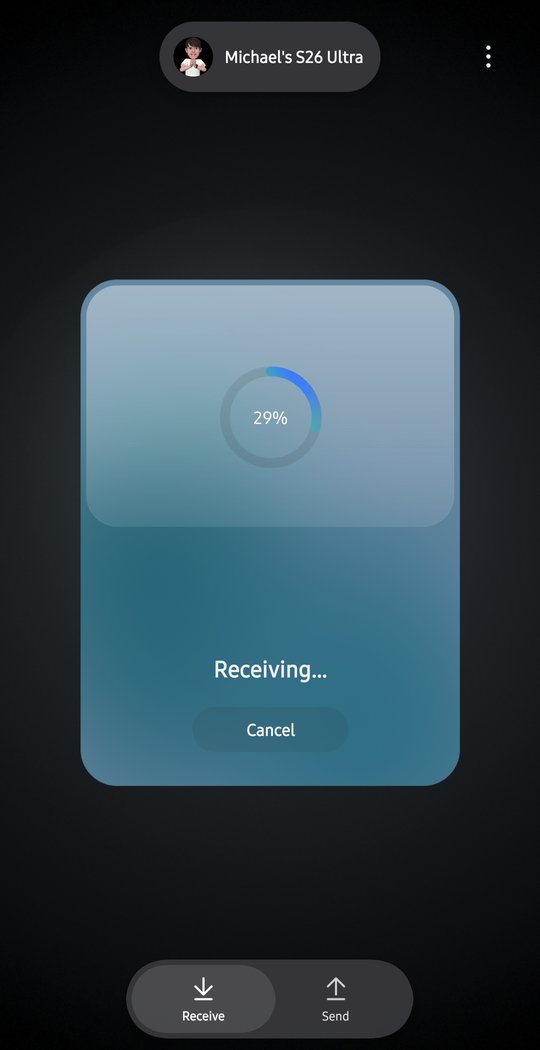
If you’re on a recent Galaxy or Pixel phone, I’d now try this before anything else in this guide. Here’s the catch: it only works on phones that have picked up the new AirDrop support, which is what the next section covers.
The Bigger Picture: Quick Share and AirDrop Are Merging
This is why it worked for me, and it changes things for a lot of people. In late 2025, Google launched AirDrop interoperability through Quick Share on the Pixel 10 series. By early 2026, it had rolled out to Pixel 9 devices and Samsung’s Galaxy S26 series via One UI 8.5, with the Galaxy S25, S24, and Z Fold and Z Flip lines following in May 2026.
This means that for an increasing number of Android users, sharing directly to a Mac via AirDrop is becoming a native option. No app required. You’ll need to enable “Share with Apple devices” in Quick Share on the phone and set your Mac’s AirDrop to “Everyone”. It’s not universal yet, but if you’re on a recent Samsung or Pixel device and a reasonably current Mac, it’s worth checking whether Quick Share shows your Mac as an AirDrop target before you install anything at all.
If you’re in the market for a capable Android phone to pair with your Mac setup, have a look at the best budget Android phones for UK families in 2026 for some solid options that won’t break the bank.
Bottom Line
If your phone supports the new Quick Share AirDrop interoperability, try that first. It’s what worked for me, and it needs nothing installed. If it doesn’t, give the free OpenMTP a go for a wired connection, but don’t be surprised if it’s flaky, as it was for me. If you want a polished wired option and don’t mind paying, MacDroid is the alternative. And if you’d rather avoid cables altogether, AirDroid is the most capable wireless option.
It shouldn’t be this complicated. But at least now you know where to start.
If articles like this save you time, sign up for the Tech Dads Life newsletter. No fluff, no spam, just useful tech for people with actual lives to be getting on with. Join here.