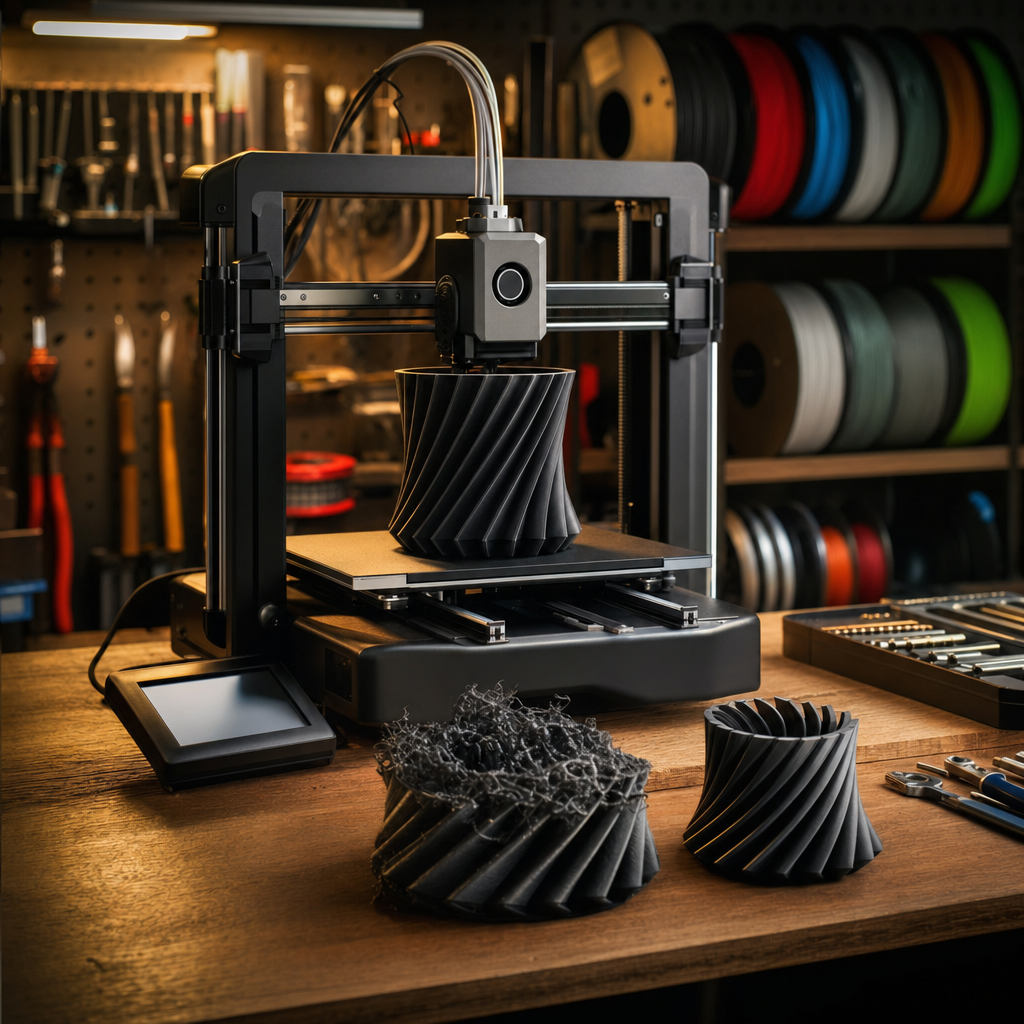
There’s a moment every 3D printing enthusiast knows well. You’ve set the print going, wandered off to make a brew, come back an hour later expecting something brilliant, and instead found a spaghetti disaster, a curled-up mess on the bed, or a model that looks like it’s been through a car wash made of cobwebs. I’ve been there more times than I care to admit, usually when I was printing something I actually needed rather than a test cube.
The good news is that 3D print failures are almost never random. They’re systematic. Every one of them has a cause, and once you know what to look for, fixing them goes from guesswork to a ten-minute slicer tweak. I run a Bambu Lab P1S in the garage, and even with a machine that handles a lot of the tuning automatically, I still hit these problems from time to time, especially when I switch filament brands or try a new material. So this guide covers the four failures I see most often: stringing, warping, layer adhesion problems, and first-layer issues. For each one, I’ll explain what’s actually happening, why, and exactly what to do about it.
Before You Start
Before diving into individual fixes, make sure your printer is in reasonable working order. A worn nozzle, a bed that hasn’t been levelled in months, or filament that’s been sitting open in a damp garage can undermine every fix in this guide. Give the bed a wipe with isopropyl alcohol, check your nozzle for obvious gunk, and store your filament in a sealed bag or dry box if you haven’t already. Fixing slicer settings on top of a hardware problem is like adjusting the seasoning in a dish that’s already burnt.
Problem 1: Stringing
What’s Going On
Stringing is what happens when the print head travels between two parts of a model without laying down plastic, and the molten filament in the nozzle oozes out along the way. The result looks like cobwebs or thin hairs stretched between sections of the print. It’s especially common with PETG, which stays runny across a wide range of temperatures, and with any filament that’s absorbed moisture. TPU and other flexible filaments are also prone to it because they’re sticky and soft when heated.
Step 1: Check Your Retraction Settings
Retraction is the process where your printer briefly pulls the filament back into the nozzle before a travel move, cutting off the flow. It’s the single biggest factor in stringing.
If you’re on a direct drive extruder (the motor sits right above the hotend), you need around 1–2 mm of retraction distance. On a Bowden setup (where the motor is mounted further away and feeds through a tube), you’ll need more, typically 4–6 mm, because the filament has further to travel.
Retraction speed should sit between 25–45 mm/s. Too slow and it won’t prevent oozing. Too fast and you risk chewing up the filament, or worse, causing a clog.
Make small adjustments, print a stringing test model (there are loads of free ones on Printables and Makerworld, usually a set of small spaced towers), and compare results.
Step 2: Bring the Temperature Down
Heat makes filament more fluid. More fluid means more ooze. If stringing is bad, try dropping your print temperature by 5°C increments and re-running the test. For PLA printing at 220°C, try 215°C, then 210°C if needed. Don’t go below the manufacturer’s minimum, though. Under-extrusion and layer adhesion problems kick in when it’s too cold.
Step 3: Increase Travel Speed
The faster the nozzle moves between sections, the less time there is for filament to leak out. Aim for 150–200 mm/s on travel moves if your printer can handle it. Be cautious, though. Very high speeds on machines with less rigid frames can cause layer shifts or motor skips. Test incrementally.
Step 4: Use Combing Mode
Most slicers (Bambu Studio , PrusaSlicer, Cura) have a “combing” mode or equivalent. This keeps the nozzle travelling within already-printed areas rather than crossing open gaps. There’s also an “avoid crossing perimeters” setting in some slicers, which routes the nozzle around the model’s outer walls instead of cutting straight across gaps. Neither will eliminate stringing entirely, but they mean any that does occur is hidden inside the model rather than visible on the surface.
One note: disable Z-Hop if you have it on. Lifting the nozzle vertically before travel sounds logical, but it often drags plastic upward and makes stringing worse, not better. Unless you specifically need it for another reason, it’s best left off.
Problem 2: Warping
What’s Going On
Warping happens because plastic shrinks as it cools. The lower layers of a print cool and contract before the upper layers, which creates internal stress that literally pulls the corners of the print up off the bed. The stress tends to concentrate along corners and perimeters, where cooling happens fastest. ABS and ASA are notorious for this due to their high shrinkage rates and higher glass transition temperatures. PLA is more forgiving but not immune, especially on large flat parts or in a cold room.
Step 1: Sort the Bed Temperature
Check your material’s recommended bed temperature and make sure you’re hitting it.
- PLA: 55–65°C is the target range. Going above 65°C can cause the first layers to soften and squish.
- PETG: 70–80°C typically.
- ABS/ASA: 90–110°C, and these materials really benefit from an enclosure to trap heat.
If your bed is reading the right temperature but you’re still getting warping, check whether the actual surface temperature is even. Cheaper beds can have hot spots. A basic infrared thermometer will tell you quickly whether the corners are cooler than the centre.
Step 2: Clean the Bed Properly
This one is underestimated. Fingerprints, dust, and leftover adhesive residue all reduce the grip between the first layer and the build plate. Wipe down with isopropyl alcohol (70% or higher) before every print if you’re dealing with adhesion issues. Don’t touch the bed surface with bare fingers after cleaning.
Step 3: Sort Your Environment
If your printer is in a cold garage or a draughty room, warping becomes much harder to prevent. Ambient temperature below 20°C can cause problems even with PLA. If you can, move the printer somewhere warmer, or consider an enclosure. For ABS and ASA, an enclosure isn’t optional. It’s essentially required.
Close the garage door, move the printer away from windows, and make sure there’s no direct airflow from fans or air conditioning hitting the print.
Step 4: Adjust the Z-Offset if Needed
If the nozzle is too far from the bed, the first layer doesn’t get squished down properly and won’t bond well. An incorrect Z-offset means you end up with rounded extrusion lines instead of flattened contact paths, which weakens adhesion significantly. A correct Z-offset means the first layer is slightly flattened and firmly pressed into the bed texture. Most modern printers let you adjust this live during the first layer, so use that feature.
Problem 3: Layer Adhesion Failures
What’s Going On
If prints are weak, snapping easily, or showing visible gaps between layers, the layers aren’t bonding properly. This usually comes down to temperature, speed, or extrusion problems.
Step 1: Increase Print Temperature
Low temperatures mean the filament doesn’t have time to properly fuse with the layer below. Try increasing the print temperature by 5°C increments. If you’ve been chasing stringing by dropping temperatures, you may have gone too far.
Step 2: Reduce Print Speed
Faster speeds mean less time for each layer to properly bond. Dropping overall print speed by 10–20% on a difficult print can make a significant difference to layer adhesion, especially on smaller parts where the layers are cooling very quickly.
Step 3: Check Your Extrusion Multiplier
If the printer is under-extruding (putting down less plastic than it should), layers won’t bond because there isn’t enough material to make contact across the full surface. Run an extrusion calibration and check whether your flow rate or extrusion multiplier needs adjusting in the slicer.
Step 4: Dry Your Filament
Moisture in filament causes steam bubbles during printing, leading to tiny voids and weak spots throughout the print. If you hear popping or crackling sounds during a print, the filament is wet. Dry PLA at around 45°C for 4–6 hours. Don’t go higher with PLA, as it can warp the spool. PETG needs a bit more heat, around 65°C.
Problem 4: First Layer Issues
What’s Going On
If the first layer isn’t right, nothing after it will be. First-layer problems include gaps in the lines, lines not sticking, or the nozzle scraping and dragging the filament.
Step 1: Re-Calibrate Your Z-Offset
This is almost always the culprit. If the nozzle is too high, the filament falls to the bed without being pressed in. If it’s too low, it scrapes. You want the first layer lines to be slightly flattened and glossy, with no gaps between them.
Most printers let you tweak the Z-offset live during printing. Run the first layer, watch it closely, and make small adjustments in 0.05 mm increments until it looks right. Take a photo when it does. You’ll want to reference it next time.
Step 2: Slow Down the First Layer
Slow the first layer speed to 20–25 mm/s regardless of what the rest of the print runs at. This gives the filament more time to bond with the bed surface and gives you a better chance of the whole print sticking.
Step 3: Use the Right First Layer Settings in the Slicer
Make sure your first layer height is at least 0.2 mm, even if you’re printing finer layers above. Many slicers let you set a separate first layer height and line width. A slightly wider first layer line, around 110–120% of normal width, improves bed contact significantly.
If It’s Still Not Working
If you’ve worked through all of the above and you’re still getting failures, check three things. First, is the filament genuinely dry? Even if it’s new, some filaments absorb moisture during shipping. Throw it in a dryer and try again. Second, is the bed physically level? Most auto-levelling systems compensate for small variations, but a badly warped or dirty bed can exceed their range. Third, is there a partial clog in the nozzle? Inconsistent extrusion that doesn’t respond to temperature or speed changes often points to a blocked or worn nozzle that needs replacing.
If you’ve worked through this guide methodically, the vast majority of 3D print failures will be sorted. These four problems account for the bulk of what goes wrong with FDM printing, and every one of them has a fix that doesn’t require replacing the printer or spending a fortune. If you’re still stuck after all of this, drop me a message through the site. I genuinely enjoy working through a puzzler.
If you found this useful, come and join the Tech Dads Life newsletter. I send out practical guides, honest reviews, and the occasional thing my kids absolutely didn’t want me to share. No spam, no faff. Sign up at techdadslife.beehiiv.com and I’ll see you in your inbox.