
Poor video calls are almost never about download speed
If your video calls keep freezing, cutting out or sounding like the other person is speaking through a tin can, the culprit is almost always one of four things: insufficient upload speed, a weak Wi-Fi signal, congestion from other devices on the network, or a problem with the calling device itself. The good news is that you can rule out most of these causes in under ten minutes using free tools, without spending a penny or touching your router’s advanced settings.
This guide walks through those checks in order, quickest first. I have not personally tested every router or device combination listed here, so where a step depends on your specific hardware, I have noted that clearly.
Before you start: what you will need
Gather these before working through the steps so you are not hunting around mid-diagnosis.
- A device with a browser (laptop, tablet or phone)
- An Ethernet cable and a device with an Ethernet port, if you have one available (most modern laptops will need a USB-C to Ethernet adaptor)
- Access to your router’s admin page (check the label on the back of the router for the IP address and default login)
- Five to ten minutes when the household is using the internet roughly as normal
- A way to note down your results. A notes app or a scrap of paper is fine
You do not need to download anything. All the speed tests mentioned below run in a browser.
Understanding the key terms
Before jumping in, it helps to know what you are actually measuring.
Upload speed is how quickly data travels from your device outward to the internet. When you are on a video call, your camera feed and microphone audio are being uploaded continuously. Most UK home broadband packages are asymmetric, meaning download speeds are much faster than upload speeds. A headline “500 Mbps” package might only offer 50 Mbps upload, and that is the number that matters here.
Latency (ping) is your connection’s reaction time, measured in milliseconds. Low latency means the network responds quickly. High latency means there is a noticeable delay between your words leaving your device and arriving at the other person.
Jitter is the variation in that delay. A connection with high jitter delivers data in uneven bursts rather than a steady stream. Even if your speed test looks fine, jitter above roughly 30 ms can cause choppy audio and a frozen or pixelated picture.
Packet loss is when small chunks of data simply fail to arrive. Video call software cannot wait and re-request them the way a file download can, so packet loss shows up immediately as glitches.
Diagnostic steps
Step 1: Restart your router and the calling device
This takes two minutes and fixes a surprising number of issues. Routers can develop software glitches or stale connections over weeks of continuous use. Switch the router off at the wall, wait thirty seconds, then switch it back on. While it reconnects, restart the device you use for calls and relaunch the calling app. Test the call again before doing anything else.
Step 2: Run a speed test and note upload speed, latency and jitter
Open a browser and go to Think Broadband’s speed test or Speedtest.net . Both are free and browser-based. Think Broadband is widely cited by Ofcom and displays results as a graph, which makes it easier to spot instability over a few minutes rather than just a single snapshot.
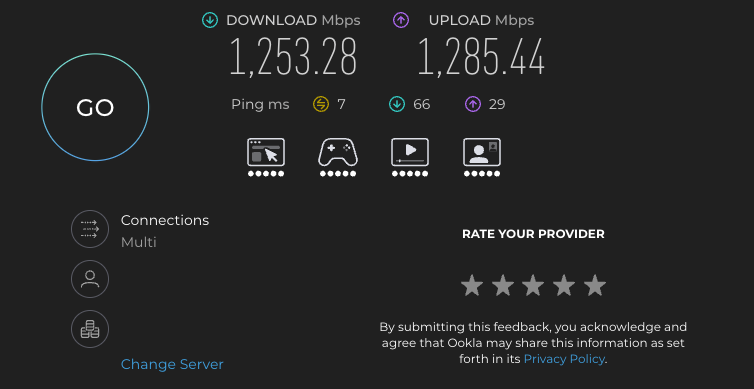
Run the test and write down three numbers: upload speed, ping (latency) and jitter. Then compare against these platform-published minimums. Note that these are vendor minimums under ideal conditions, not comfort thresholds for a reliable experience.
| Platform | Minimum upload (1:1 HD) | Recommended upload (1080p) |
|---|---|---|
| Zoom | 1.2 Mbps (720p) | 3.8 Mbps (1080p) |
| Microsoft Teams | 1.0 Mbps | 4.0 Mbps |
| Google Meet | roughly 1.8 Mbps | up to 3.6 Mbps |
If you have two people calling simultaneously or one person sharing their screen while another streams music, those figures stack up quickly. A household with 10 Mbps upload has roughly enough headroom for two simultaneous HD calls with a little left over for background sync.
For the most accurate result, close other apps, pause any downloads, and if you can, disconnect devices you are not testing. Try the test at peak hours (roughly 8 pm to 10 pm) to capture the worst-case scenario, as contention on the local network can reduce speeds during busy periods.
Step 3: Repeat the speed test over an Ethernet cable
If you have a laptop with an Ethernet port (or an adaptor), plug it directly into the router and run the speed test again. This isolates the Wi-Fi from the broadband line.
- Wired speed is much higher than Wi-Fi speed: the problem is your wireless coverage or interference, not your broadband line itself.
- Wired speed is also slow: the problem is your broadband line or your ISP. Skip to the “When to contact your provider” section below.
- Wired speed is fine and call quality improves wired: consider keeping the calling device wired during important calls as a free, immediate fix.
Step 4: Check router placement and interference
Wi-Fi signals weaken through walls, floors and large appliances. A router tucked in the corner of a hallway behind the front door, or in a cupboard with the telephone socket, is rarely well-placed for a house where people work and call from different rooms.
Common sources of interference include microwave ovens, baby monitors, cordless phones and neighbouring Wi-Fi networks. These often share the 2.4 GHz frequency band. If your router supports 5 GHz Wi-Fi, try connecting your calling device to that band instead. It offers faster speeds over shorter distances and is usually less congested indoors.
For the best signal, the router should be placed in a central location, raised off the floor, away from thick walls and not enclosed in a cabinet.
Step 5: Reduce competing devices and background activity
Video calls compete with everything else on the network. A smart TV streaming 4K, a games console downloading an update and a phone backing up photos can all eat into the upload headroom your call needs.
Before a call:
- Pause cloud backups (Google Photos, iCloud, OneDrive) on all devices if possible
- Check whether any large downloads are running, game updates in particular
- Close browser tabs and apps on the calling device that are not needed
This costs nothing and often makes an immediate difference.
Step 6: Check the calling device itself
Sometimes the network is fine and the device is the bottleneck.
Power saving settings: Many laptops reduce Wi-Fi performance when running on battery to save power. This works fine for email but can cause problems during long HD calls. Plug the laptop in and check whether call quality improves. On Windows, you can also check the network adapter’s power management settings in Device Manager, though the exact steps vary between manufacturers and Windows versions.
RAM and background processes: Video call apps use a meaningful amount of memory. If the device is running many applications at once, close what you do not need before the call.
App and driver updates: An outdated version of Zoom, Teams or Meet can introduce compatibility issues. Check that the app is up to date. On laptops, an outdated Wi-Fi driver can also cause instability during long calls, though updating drivers is worth doing carefully and only from the manufacturer’s official support pages.
Step 7: Consider QoS settings on your router (only if congestion is confirmed)
QoS (Quality of Service) is a feature on many home routers that lets you prioritise certain devices or types of traffic. If you have confirmed through the steps above that congestion from other household activity is the cause, and not a weak signal or insufficient upload capacity, it is worth exploring whether your router supports QoS.
The location and labelling of QoS settings varies significantly between router models. Some ISP-supplied routers do not expose this setting at all. Check your router’s manual or the manufacturer’s support pages for your specific model. QoS manages how your existing bandwidth is shared. It does not add capacity or improve the speed coming into the house from your ISP.
Verifying the fix
After working through the relevant steps, run the speed test again under the same conditions as before. Look for a meaningful improvement in upload speed and, importantly, a drop in jitter. Then make a test call with a friend or family member and ask them directly whether the picture and audio are stable. That real-world check matters more than the speed test number alone.
Troubleshooting: known failure modes
| Symptom | Likely cause | What to try |
|---|---|---|
| Call drops but browsing is unaffected | Weak or unstable Wi-Fi, or laptop power saving | Move closer to router; plug laptop in; disable Wi-Fi power saving |
| Choppy audio and frozen video | High jitter or upload saturation | Close background apps; pause cloud sync and downloads |
| Speed test looks fast but Zoom says “unstable” | High jitter or packet loss rather than raw speed. Speed tests measure total bandwidth, but video calls require low latency and minimal packet loss. | Run the test several times; check results for inconsistency |
| Only one device is affected | Device driver or RAM issue | Update the app; close other programs; restart the device |
| Moving between rooms drops the call | Rapid roaming between access points can disconnect real-time sessions | Stay in one room during calls; consider a mesh Wi-Fi system if coverage is a persistent problem |
| Wired test is also slow | Line or ISP issue | Contact your broadband provider |
When to contact your broadband provider
If the Ethernet speed test is consistently below what your package promises, contact your ISP. Before you call, screenshot or save several test results showing the date, time and values. This gives you something concrete to refer to.
If your broadband contract started after March 2019 and your provider has signed Ofcom’s voluntary broadband speed code of practice (this includes BT, EE, Now Broadband, Plusnet, Sky, TalkTalk, Utility Warehouse, Virgin Media and Zen Internet), your provider is required to give you a minimum guaranteed speed at the point of sale. If your speed falls below that figure and the provider cannot fix it within 30 days, you should be able to exit the contract without penalty. Ask your provider directly about this when you call.
One practical note: on part-fibre (FTTC) connections, your distance from the street cabinet affects the maximum speed your line can physically support. If you are far from the cabinet, there may be a ceiling on what the provider can deliver without upgrading you to a full-fibre (FTTP) service.
Related notes
If you are finding that Wi-Fi problems extend beyond video calls and affect the whole household, the guide to setting up a family smart home from scratch covers home network planning in more detail. For households where the router cannot physically reach all rooms, a mesh Wi-Fi system is often a more practical solution than repositioning the existing router, though that is a separate topic worth researching before buying anything.