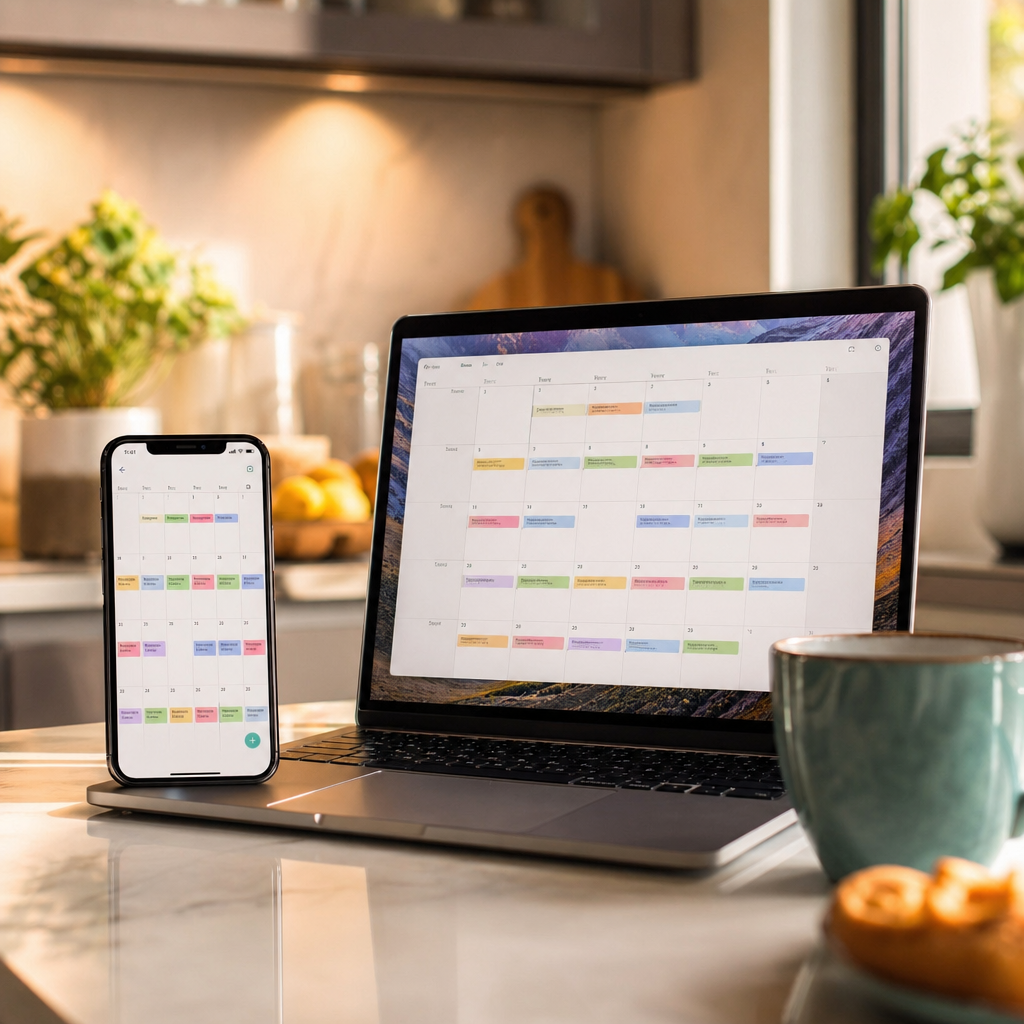
If I had a pound for every time someone in my family said “I didn’t know about that,” I’d have enough to buy a very decent curry for five. School parents’ evening? “Didn’t know.” Dentist appointment? “You never told me.” My eldest’s driving lesson that I’d mentioned three times at the dinner table? Apparently those words evaporated into thin air the moment they left my mouth. The shared family calendar was supposed to fix all of this. And eventually it did. But getting there took a few false starts, one spectacular double-booking, and a lot of patience. Here’s how to set one up properly, and more importantly, how to get everyone in your household to actually look at it.
Before You Start
You need to make one big decision up front: which ecosystem are you building this around? If everyone in your house uses iPhones, Apple Calendar with Family Sharing is the simplest route. But if you’ve got a mix of devices, and most families do, Google Calendar is the better choice because it works seamlessly on both Android and iOS. In our house, my wife and I are on Android (Samsung Galaxy phones), our youngest is on Android too, and the two eldest have iPhones. That ruled Apple out for us immediately. Google Calendar is free, cross-platform, and doesn’t care what phone anyone is carrying. You’ll also need everyone to have a Google account. For kids under 13, you can set one up and manage it through Google Family Link , which gives you parental oversight of their account.
Step 1: Create Your Google Family Group
The quickest way to get a shared calendar is through Google’s Family Group feature. This supports up to six members and automatically creates a “Family” calendar that appears in everyone’s Google Calendar app without them having to subscribe or hunt for anything.
To set it up, go to families.google.com on a desktop or laptop. Sign in with your Google account and follow the prompts to create a family group. You’ll be the family manager. Add family members by entering their Gmail addresses. Each person gets an invitation they need to accept.
Once they do, a calendar called “Family” appears in their Google Calendar app automatically. No fiddling, no searching. It’s just there.
Important: if you have more than five other family members, or you want to share with grandparents, babysitters, or anyone outside the core household, the Family Group is capped at six people total. The workaround is simple. Create a separate shared calendar (covered in the next step) and invite whoever you need.
Step 2: Create a Dedicated Shared Calendar (The Better Option for Most Families)
This is actually what we ended up doing alongside the Family Group calendar, and I’d recommend it as your primary family calendar because it gives you more control.
- Open calendar.google.com in a browser on your computer. You must do this on desktop. The Google Calendar mobile app still doesn’t support calendar sharing setup, which is genuinely annoying.
- In the left sidebar, click the + next to “Other calendars” and select “Create new calendar.”
- Name it something obvious. Ours is just called “Family calendar.”
- Click “Create calendar.”
- Now go into the calendar’s settings. Find “Share with specific people” and click “Add people.”
- Enter each family member’s Gmail address. For permissions, choose “Make changes to events” so everyone can add and edit. If you want someone to only view but not touch anything, choose “See all event details” instead.
- Click “Send.” Each person receives an email invitation. Once they accept, the calendar appears in their Google Calendar app and syncs automatically across all their devices.
For the two eldest on iPhones, they just need the Google Calendar app installed from the App Store and signed into their Google account. Everything syncs perfectly. No delays, no drama.
Step 3: Set Up Colour Coding So You Can Actually Read the Thing
This is where a family calendar goes from “technically functional” to genuinely useful. Without colour coding, you end up with a wall of identical-looking entries and no idea whose orthodontist appointment is on Thursday.
Here’s how we do it:
- Purple for family events (things that involve everyone, or at least most of us, like holidays, family dinners out, or weekends away)
- Orange for my events
- Each family member has their own colour too
To set colours in Google Calendar, simply right-click on the calendar name in the left sidebar (on desktop) and pick a colour. On mobile, tap the three-dot menu next to the calendar name and choose a colour. Each person can set the colour of their own calendar, so agree on a system up front and stick to it. Write it down if you have to. Stick it on the fridge next to the takeaway menus.
The key thing is consistency. If purple means “whole family,” it always means whole family. No exceptions. When you glance at a week view and see a block of purple on Saturday, you know instantly that everyone needs to be available.
Step 4: Configure Notifications (This Is Where Most Families Fail)
Here’s the thing nobody tells you about Google Calendar. By default, only the person who creates an event gets reminders. Everyone else sees the event on their calendar but gets absolutely no notification about it. This is the single biggest reason family calendars fail. People aren’t ignoring the calendar on purpose. They genuinely never got a ping.
Each family member needs to do this on their own device:
- Open the Google Calendar app.
- Tap the hamburger menu (three lines, top left) and then Settings.
- Tap on the shared family calendar name (e.g., “Family calendar”).
- Under “Default notifications,” set a reminder. I’d suggest 30 minutes before as a starting point, and add a second one for 1 day before for bigger events.
This takes about 45 seconds per person. Do it together at the dinner table one evening. Hand each person their phone and walk them through it. If you leave it to them, it won’t happen. I speak from experience.
Also, you don’t get notifications when someone else creates, edits, or deletes an event by default. If you want those, each person needs to go to the calendar settings on the web version and tick the notification boxes under the shared calendar’s settings.
Step 5: Get the Kids to Actually Engage With It
Setting up the calendar is the easy part. Getting a teenager to check it is a different sport entirely. Here’s what worked for us:
Make them add their own events. Piano lessons, football practice, seeing mates, whatever it is. If they’re adding things themselves, they’re opening the app. If they’re opening the app, they’re seeing everyone else’s events. It becomes a habit.
Use it as the single source of truth. We have a rule: if it’s not on the calendar, it doesn’t exist. Want a lift somewhere on Saturday? Put it on the calendar. Want to have a friend over? Calendar. This sounds harsh, but it only takes one missed event for the message to land.
Don’t nag. Refer. Instead of repeating yourself about tomorrow’s appointment, just point people towards the calendar. It shifts responsibility without turning you into a broken record.
For kids under 13, Google Family Link lets you manage their account, and anyone with “Make changes and manage sharing” permission on the calendar gets an email notification when a child under 13 makes changes. That’s a useful safeguarding feature if your younger ones are adding events independently.
Step 6: What About Apple Calendar?
If your entire family uses Apple devices, Family Sharing makes this straightforward. Go to Settings > [Your Name] > Family Sharing on your iPhone and invite family members (up to six people). A shared “Family” calendar appears automatically in everyone’s Calendar app. You can let members add and edit events by toggling “Allow Editing” on.
It works beautifully within the Apple ecosystem. The problem is when it doesn’t. If even one family member uses Android, you’re looking at potential sync issues and a more complicated setup. Some users have reported delays when syncing Google Calendar events to iCloud calendars, and while experiences vary, it’s enough of a risk that I’d steer mixed-device families towards Google Calendar every time. We tried the Apple route first because the two eldest were already on iPhones. It lasted about three weeks before the sync issues drove me round the bend.
If It’s Still Not Working
“Nobody checks it.” This is almost always a notification problem. Go back to Step 4 and make sure every family member has default notifications turned on for the shared calendar. If they’ve muted notifications for the Google Calendar app entirely (teenagers are experts at this), that needs fixing at the device level too.
“Events are appearing twice.” Duplication usually happens when someone adds an event to both their personal calendar and the shared family calendar. Set a clear rule: family events go on the family calendar only. Personal stuff goes on personal calendars. If you’re seeing duplicates from syncing between Apple and Google calendars, pick one system and stick with it.
“My kid left the family group and lost everything.” If someone leaves a Google Family Group, they lose access to the Family Group calendar. This is why I prefer a standalone shared calendar (Step 2) alongside the family group. It gives you more control and doesn’t vanish if someone’s account changes.
The Setup We Actually Use
After trying various combinations, here’s what landed for the our household. We use a dedicated Google shared calendar called “Family calendar” as the primary hub. Purple for family events, orange for mine, and each family member has their own colour. Default notifications are set to 30 minutes and 1 day before events. The two eldest access it through the Google Calendar app on their iPhones. My wife, our youngest, and I use it natively on Android. Everyone adds their own events. If it’s not on the calendar, the official family position is that it isn’t happening.
It took about two weeks of gentle reinforcement before it became second nature. Now it’s one of those things I genuinely couldn’t manage without. Five people, three different school schedules, work commitments, social lives, and the occasional camping trip. All in one place, colour-coded, with reminders that actually fire. It’s not glamorous tech, but it’s the kind of setup that quietly makes family life run smoother. And nobody has missed a dentist appointment since. Well, not accidentally anyway.
If you found this useful and want more practical tech guides for real family life, come join the newsletter. I send out tips, reviews, and the occasional hard-won lesson every week. No spam, no fluff, just stuff that actually helps. Sign up here: https://techdadslife.beehiiv.com/