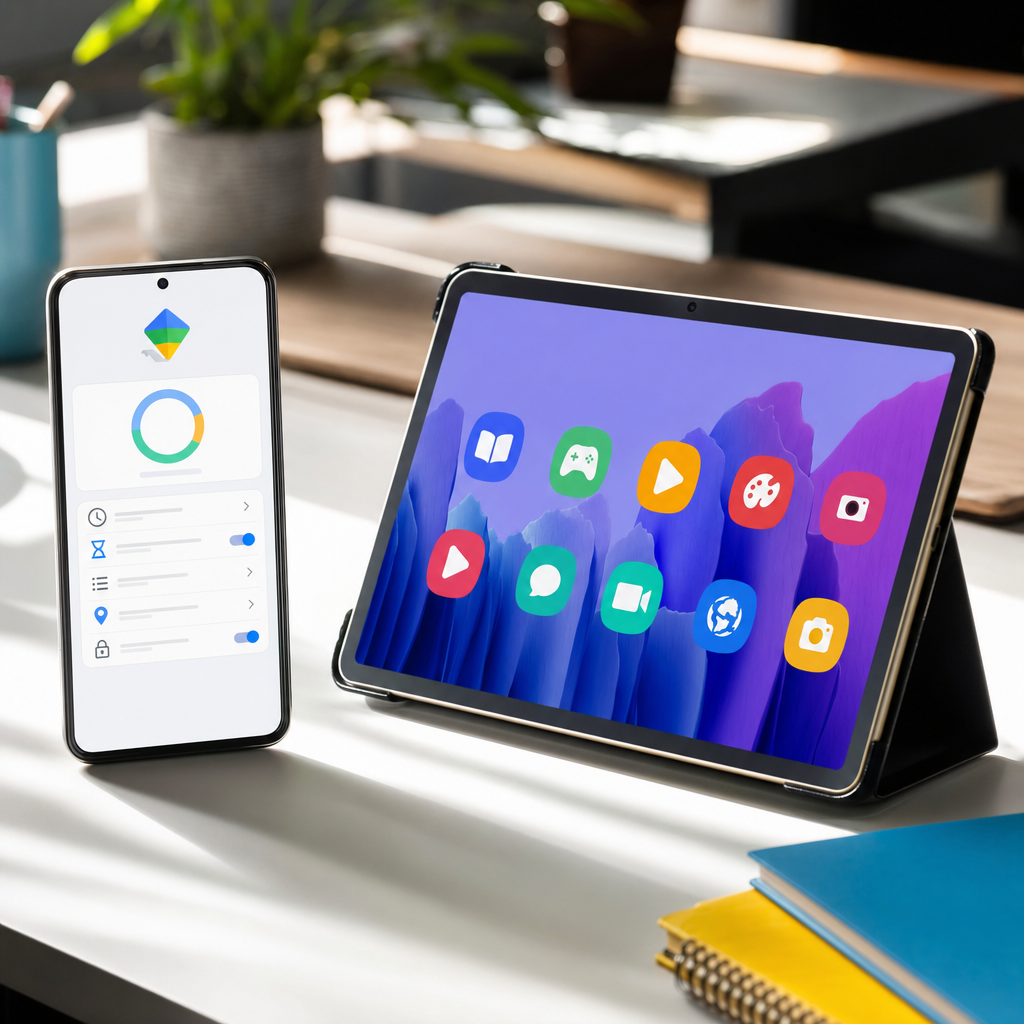
When my youngest got his first Android phone at 13, my wife and I spent an evening trying to figure out the best way to put some guardrails on it without making him feel like he was being treated as a small child. We had heard about Google Family Link but had never actually set it up. What followed was about two hours of mild confusion, a few wrong turns, and eventually a setup that worked.
That was a while ago and Family Link has improved significantly since. In 2026 it is a genuinely capable parental control system that covers most of what families actually need: screen time limits, app approval, content filters, and location sharing. This guide walks through the whole setup clearly so you do not spend two hours on it the way I did.
What Google Family Link Actually Does
Family Link is Google’s free parental controls system for Android devices and Chromebooks. It links a child’s Google account to a parent’s, giving the parent a dashboard to manage the child’s device remotely.
The key things it does well: daily screen time limits you can set per app or as a total, the ability to approve or block app downloads from the Google Play Store, website content filtering through SafeSearch and restricted Chrome browsing, remote device lock (useful for bedtime), and location tracking on the child’s device.
What it does not do: it does not filter content within apps beyond basic controls, it does not monitor messages or calls, and once a child turns 13 they can request to manage their own account (though you can keep supervision active beyond 13 if both you and the child agree).
Family Link works on Android phones and tablets running Android 7 or later, and on Chromebooks. It does not work on iPhones or iPads — for Apple devices, use Screen Time instead.
Step 1: Set Up a Google Account for Your Child
If your child already has a Google account and is under 13, it should already have some restrictions applied. If they do not have an account, you will need to create one.
On your own Android phone or via the Family Link app, open the app and tap Create a Google Account for a child. You will be asked to enter their name, date of birth, and choose a username and password. Because they are under 13 (or you are opting into supervision), this account will automatically be linked to yours as a supervised account.
If your child is 13 or older, they can create a normal Google account and then accept a supervision invitation from you through Family Link. They have to agree to this — Family Link cannot be added to a teenager’s account without their consent. Worth having the conversation about why you are setting it up before starting, rather than trying to do it silently.
Step 2: Install Google Family Link on Your Phone
Download the Google Family Link app on your Android phone from the Google Play Store. If you have an iPhone, there is a Family Link app for iOS too — you can manage your child’s Android device from an iPhone.
Sign in with your own Google account. The app will walk you through linking your child’s account. You will need to have your child’s device nearby during setup.
Step 3: Link Your Child’s Device
On your child’s Android device, make sure they are signed in with their Google account. Open the Settings app, go to Google, then Parental Controls, and follow the prompts to link to your Family Link account. A code is generated on the child’s device that you enter in your Family Link app to confirm the connection.
Once linked, you will see the child’s device appear in your Family Link dashboard. You now have full oversight.
Step 4: Set Screen Time Limits
In the Family Link app, tap your child’s name, then Screen Time. You can set a daily limit (for example 2 hours total per day), or set individual limits per app. Setting limits per app is more nuanced — you might allow unlimited time on educational apps while limiting games to 45 minutes.
The Bedtime feature lets you lock the device at a set time each night. Set this to 30 minutes before you actually want them asleep, since there will always be “just finishing this” negotiations. Setting it to 9pm when you want them off screens by 9.30pm gives you a buffer.
When a limit is reached, the screen locks and shows a message. The child can send you a request for more time, which you approve or decline from your phone. This is a genuinely useful feature — it turns “can I have more screen time” into a formal request rather than an argument.
Step 5: Manage Apps
By default, any app your child tries to download from the Google Play Store will require your approval first. You will get a notification on your phone, can see what the app is, and approve or decline with one tap.
You can also see all currently installed apps and block any you do not want them using. Blocking an app does not uninstall it, it just prevents it from being opened.
For content filtering on the Play Store, go to your child’s profile in Family Link, then Controls, then Content Restrictions on Google Play. You can set age ratings for apps, games, films, TV, and books.
Step 6: Set Up Location Sharing
In the Family Link app, tap your child’s name, then Location. Toggle on Location Sharing. This uses the GPS on your child’s phone to show their location on a map in your app.
Location accuracy depends on the child having mobile data or Wi-Fi and location services enabled on their device. In areas with poor signal it can be imprecise, but for general awareness (are they at school, have they arrived at a friend’s house) it works reliably.
Common Problems and Fixes
My child’s device is not showing up in Family Link. Check both devices are connected to the internet. Try signing out of the Google account on the child’s device and signing back in.
Screen time limits are not working. Check the device’s date and time are set correctly. Also make sure the child is signed in to the linked account, not a secondary account on the device.
My teenager is asking to remove supervision. At 13 and older, Google will periodically remind your child they can request independence. You will get a notification when they request it and can decline. Having an ongoing conversation about why you have the setup is more sustainable than a purely technical lock-down.
I cannot approve app requests remotely. Make sure notifications are enabled for the Family Link app on your phone. Go to your phone’s Settings, then Apps, then Family Link, then Notifications.
Tips Most Guides Skip
Use the bonus time feature. When a device locks and your child asks for more, you can grant specific amounts — 15 minutes, 30 minutes, or until the end of the day. Granting 15 minutes for “just finishing this” is more precise than unlocking the device completely.
Check the activity report. Family Link shows you a weekly breakdown of how much time was spent on each app. Worth reviewing monthly to spot patterns — if 90% of screen time is on one particular app, it is worth a conversation.
The location history is limited. Family Link shows current location but does not store a detailed location history the way a dedicated tracking app might. If detailed location history matters to you, look at supplementary options.
The Family Angle
Family Link works differently depending on the age of your child. For a 13-year-old getting their first phone, having it set up from day one normalises the oversight and makes it much less contentious than introducing it later. For a 17-year-old, the conversation is more nuanced — they are months from legal adulthood, and an outright lock-down approach tends to backfire.
The most useful framing I have found is positioning Family Link as a tool for the family rather than surveillance of the child. Sharing location goes both ways — my son knows he can always see where I am too. Screen time limits are presented as a household norm rather than a punishment.
For more practical guides on managing family tech, sign up to the Tech Dads Life newsletter at Tech Dads Life on Beehiiv .