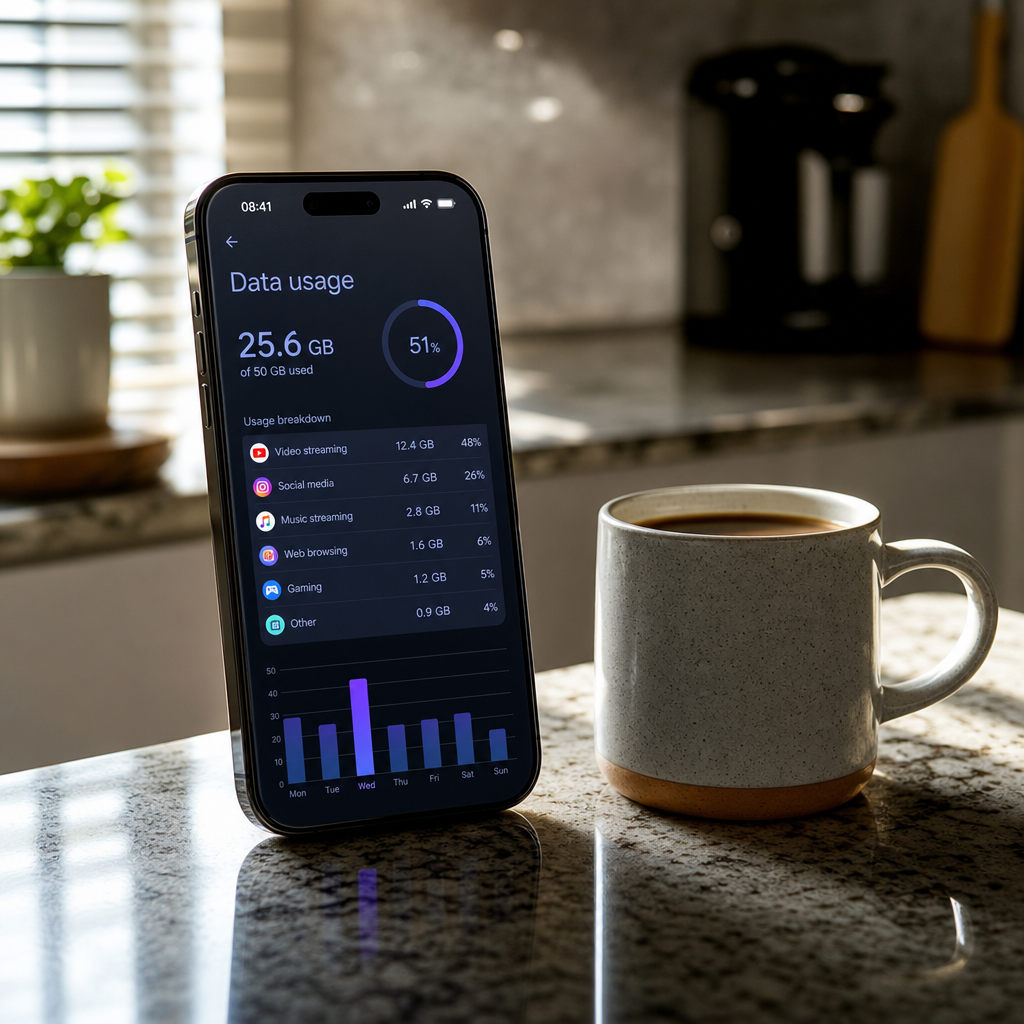
It happened on a Tuesday evening. I was going through the monthly bills, half a cup of coffee in hand, and spotted a charge on the mobile account that made me put the mug down a bit faster than intended. One of the boys had been on a gaming app that had somehow slipped through without Ask to Buy triggering properly, and a handful of in-game purchases had quietly stacked up. Not catastrophic, but not nothing either. The kind of thing that makes you think: right, I need to actually get on top of this.
The frustrating part is that the tools to prevent it are all there. iOS, Android, and the UK mobile networks themselves all have settings specifically designed to stop this happening. The problem is that they’re scattered across different menus, they’re not always turned on by default, and nobody tells you about them when you hand your kid a phone. This guide pulls it all together in one place, covering in-app purchase controls, data limits, and the network-level settings that most parents have never even heard of.
Before You Start
You’ll need to know which devices your kids are using (iOS or Android), which UK network they’re on, and whether you already have Family Sharing (Apple) or Family Link (Google) set up . If you don’t, setting those up is the foundation for everything else in this guide. You’ll also want to be on the same Wi-Fi as the child’s device for some of these steps, and have your own phone or laptop to hand for the network account changes. Give yourself about an hour to go through everything properly.
Step 1: Lock Down In-App Purchases on iOS
This is where most unexpected charges come from. Free games are rarely truly free, and a child who knows their way around a tap screen can rack up charges faster than you’d think.
1.1 Set up Family Sharing
If you haven’t already, go to Settings → [Your Name] → Family Sharing and add your child’s Apple ID. If they don’t have one, you’ll create a Child Account here. Apple requires this for anyone 13 and under, but I’d recommend doing it for teenagers too.
1.2 Turn on Ask to Buy
Inside Family Sharing, tap your child’s name and enable Ask to Buy. From this point, any attempt to download an app or make an in-app purchase will send an approval request to your device first. Nothing gets through without you saying yes.
1.3 Restrict in-app purchases via Screen Time
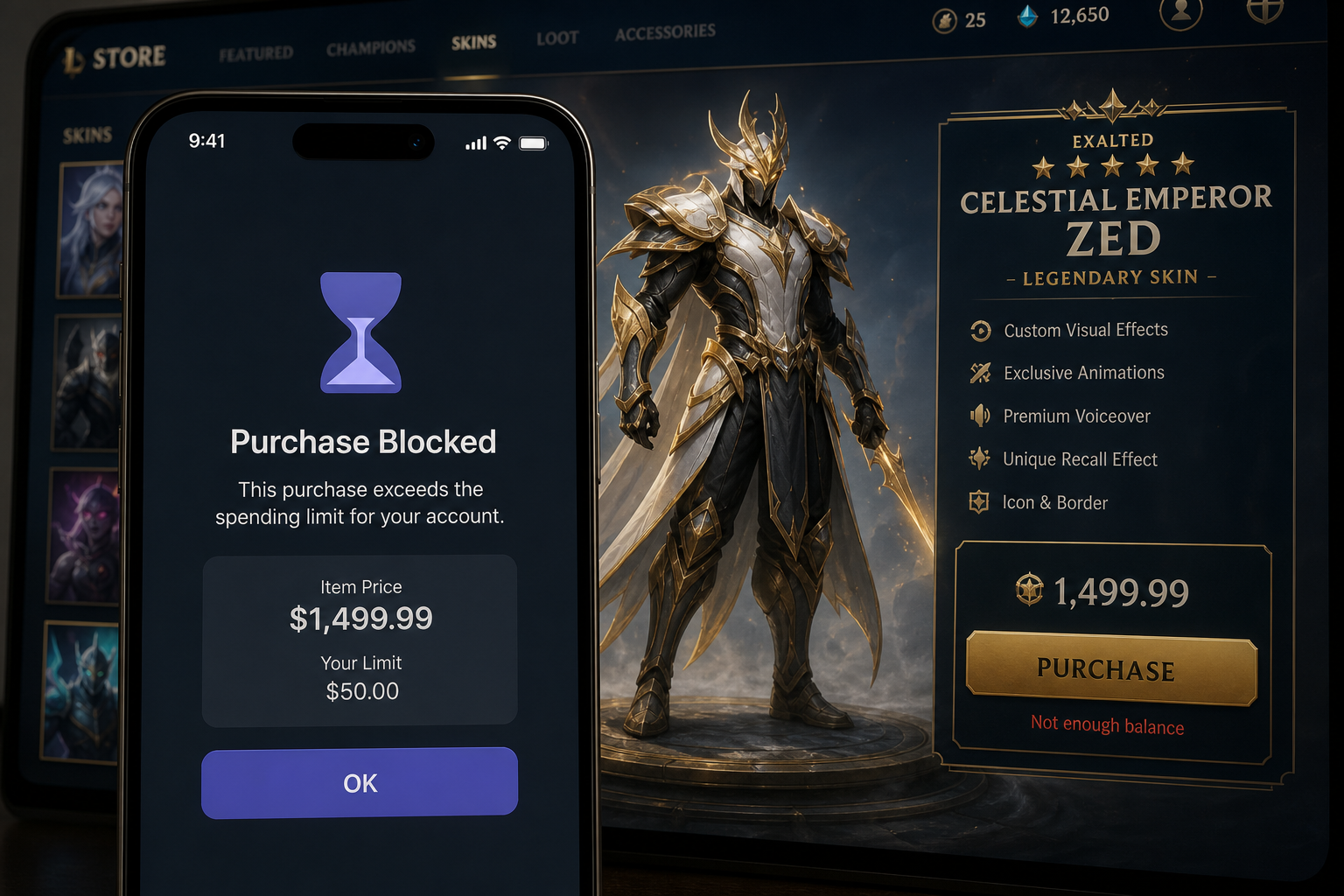
Go to Settings → Screen Time → Content & Privacy Restrictions → iTunes & App Store Purchases. Set In-App Purchases to Don’t Allow. This is a belt-and-braces move on top of Ask to Buy.
1.4 Set a Screen Time passcode
Back in Settings → Screen Time, tap Use Screen Time Passcode and set a four-digit code that only you know. Without this, a determined teenager can simply go and undo everything you’ve just set. Use a code that isn’t your birthday.
Step 2: Lock Down In-App Purchases on Android
2.1 Install Google Family Link
Download Google Family Link on your phone. It works on both iPhone and Android, which is handy if you’re an iPhone household with an Android-using child. Create a supervised account for your child if you haven’t already, and link the devices.
2.2 Require approval for purchases
Inside Family Link, go to your child’s profile, tap Controls → Google Play, and set purchases to require parental approval. Like Ask to Buy on iOS, this means every app download and in-app purchase pings you first.
2.3 Samsung Kids (younger children)
If your child has a Samsung Galaxy device and they’re on the younger side, Samsung Kids mode is worth enabling. It creates a walled-off environment with age-appropriate apps, a limited contacts list so they can only call approved family members, and daily time budgets that lock the device automatically when the allowance runs out. You’ll find it in Settings → Digital Wellbeing → Parental Controls → Samsung Kids.
Step 3: Control Mobile Data Usage
Even with purchases locked down, unchecked data usage can push you over your monthly allowance, particularly if your child has a SIM on your plan.
On iOS:
Go to Settings → Screen Time → Content & Privacy Restrictions → Cellular Data Changes and set this to Don’t Allow. This prevents your child from turning mobile data on or off for individual apps. You can also go to Settings → Mobile Data and manually turn off cellular access for specific apps that don’t need it.
On Android via Family Link:
Inside the child’s Family Link profile, you can set daily screen time limits per app, which indirectly controls how much data each app can burn through. You can also toggle mobile data off from the parent portal when they’re at home and should be on Wi-Fi.
Network-level data caps:
Most UK networks allow you to set a data cap or usage alert on child lines through your account dashboard online or in the network’s app. Log into your account with your carrier and look for Usage Controls, Spend Caps, or Data Limits. Setting a hard cap means the data simply stops when the allowance runs out, rather than running up an overage charge.
Step 4: Block Roaming Charges Before They Happen
If your kids travel, or even if you’re on a family trip and they’re using their phone, roaming charges can be eye-watering if you’re not prepared.
4.1 Turn off data roaming on the device
On iOS: Settings → Mobile Data → Mobile Data Options → Data Roaming, toggle this off.
On Android: Settings → Network & Internet → Mobile Network → Roaming, toggle off.
Do this before you travel and make sure your child knows it’s off. If they need data abroad, sort it separately.
4.2 Contact your carrier about roaming settings
Log into your carrier account or call customer services and check whether international roaming is enabled on the line by default. Many UK carriers have roaming either on or off by default depending on the plan. You can ask for it to be disabled entirely on a child’s line, so it cannot be turned back on from the device even if they try.
4.3 Add a spend cap
While you’re in your carrier account, add a monthly spend cap to any child’s line. This is a hard ceiling on what can be charged, covering calls, texts, and data beyond the included allowance. It takes about two minutes and could save you a very awkward conversation.
Step 5: Use Network-Level Content and Purchase Filtering
This is the one most parents don’t know about. UK mobile networks have filtering tools built into the network itself, separate from anything on the device.
Log into your carrier’s online account or app and look for parental controls, family controls, or content filtering. Most major UK networks offer the ability to block premium-rate numbers, block third-party billing (where charges get added to your mobile bill via a text or app), and filter adult content at the network level. Third-party billing in particular is worth blocking immediately. It’s an easy way for a child to accidentally authorise charges that bypass the app stores entirely.
If It’s Still Not Working
Ask to Buy isn’t triggering: Double-check that your child’s account is actually linked to your Family Sharing group and that they’re signed in with the correct Apple ID on their device.
Family Link controls aren’t applying: The child’s device may not have the Family Link app installed, or the device may have been signed out of the supervised account. Re-link through the Family Link app on your phone.
Charges still appearing from the carrier: Contact your network directly and specifically ask them to disable third-party billing and add a spend cap. Some of these options don’t appear in the online dashboard and need to be requested by phone.
Getting all of this set up takes a bit of time upfront, but once it’s done, it mostly runs in the background without any faff. I’d also keep in mind that tech-savvy teenagers, particularly older ones, have been known to find ways around built-in restrictions. It’s worth checking back on these settings every now and then to make sure nothing has been quietly toggled off. If you’ve worked through all of this and something still isn’t making sense for your specific setup, drop a comment below or come and ask in the newsletter community.
Want more guides like this? I send out practical, no-nonsense tech tips for families every week. Join the Tech Dads Life newsletter and never miss one: techdadslife.beehiiv.com