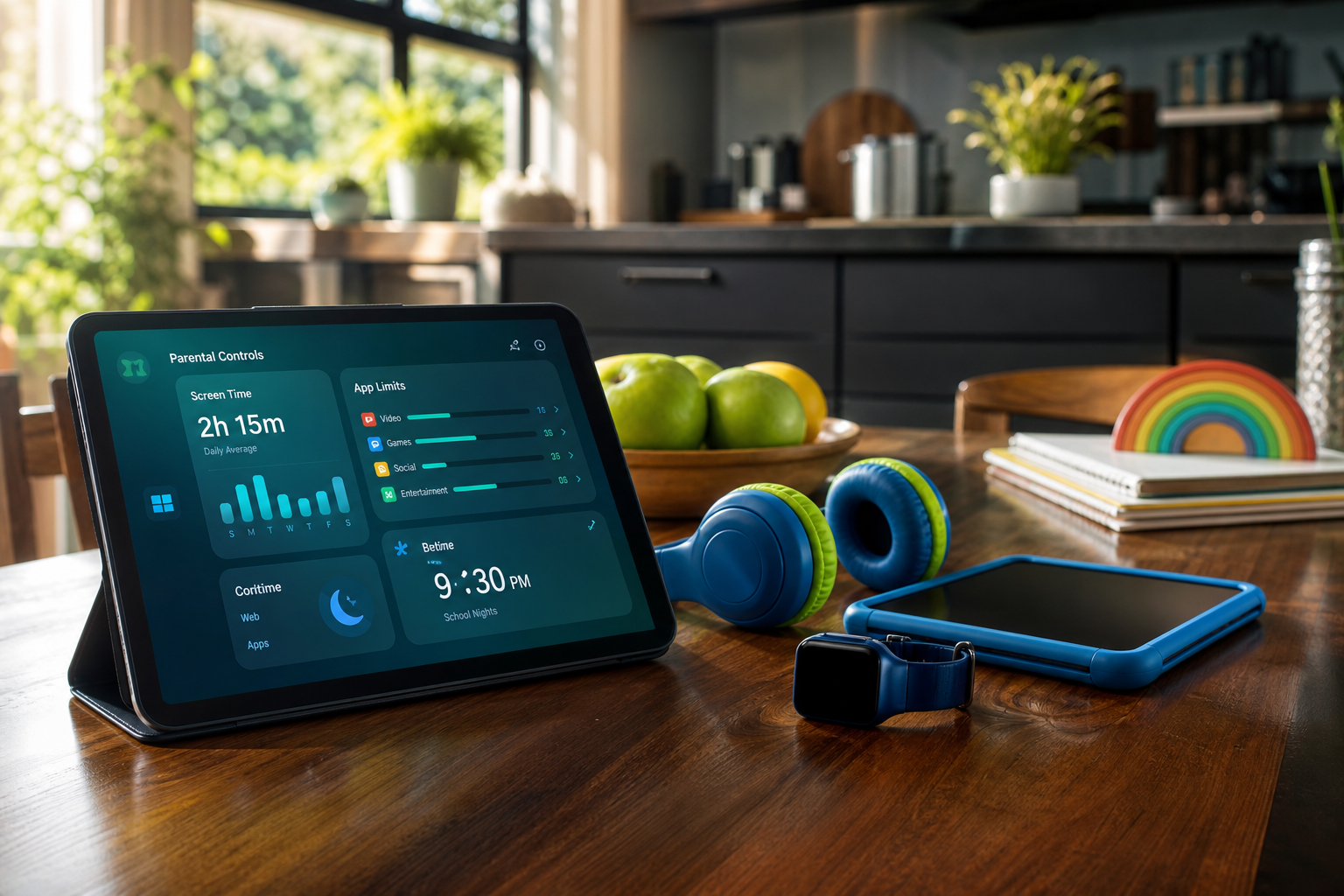
I’ll be honest with you. I thought I had this covered. I’ve set up parental controls on more devices than I care to count, I know my way around Google Family Link, and I’ve spent enough late evenings configuring network-level filters to feel reasonably confident about what my kids can and can’t access. So when I sat down to run our own Family Tech Safety Checker across every device in the house, I was mostly expecting to confirm what I already knew.
Mostly.
There were a couple of things that genuinely caught me off guard, one embarrassing incident I’ll get to shortly involving school devices and a lockout that did not go down well on a Monday morning, and a few gaps I hadn’t realised were there. If you’re a parent who thinks you’ve got this reasonably sorted, this one is worth reading. And if you haven’t started yet, it’ll save you a lot of time figuring out where to begin.
What the Checker Actually Looks At
The Family Tech Safety Checker at techdadslife.com/tools/family-tech-safety-checker walks you through your household’s devices one by one, asking about the controls you’ve got in place, what’s enabled, what isn’t, and what you might have missed. It covers phones, tablets, laptops, Chromebooks, and gaming consoles. It’s not a deep technical audit. It’s a structured prompt that makes you actually sit down and check, rather than assuming.
It took me about 25 minutes to work through everything properly. That’s not a long time to spend on something this important, but I’ll admit it’s 25 minutes I’d never specifically blocked out before. Which is probably the point.
The iPhones: Better Than Expected
My two eldest kids both have iPhones. My 20-year-old is at university and fully manages her own device, so she was out of scope here. My 17-year-old is a different matter, and while he’s sensible, I’m not naive enough to think a 17-year-old with an iPhone and no friction is automatically making great decisions at midnight.
Apple’s Screen Time controls are genuinely good. Communication Safety uses on-device machine learning to detect and blur sensitive images in Messages, which I had switched on. App downloads still require approval for anything with a content rating above the threshold I’ve set, and I’ve got Downtime configured so the phone winds down in the evenings.
The checker flagged one thing I’d missed. Screen Time settings don’t always sync cleanly across devices when someone signs in and out of iCloud, and I realised I hadn’t verified the settings had actually applied after my son got a replacement handset earlier this year. A quick check confirmed they had, but it was a fair prompt. It’s the kind of thing you set once and assume is still there.
One thing worth noting on this front. The Online Safety Act enforcement that began in July 2025 has pushed more age checks onto platforms themselves, and Ofcom’s own research found that 47% of children aged 8 to 17 ran into an age check when trying to access age-restricted content after the July deadline, up from 30% before. That’s meaningful progress. But it doesn’t replace what you’ve set up on the device itself, and anyone assuming the platforms have it covered from here is getting ahead of themselves.
Android and Google Family Link: The Gaps Were Real
My 13-year-old has an Android phone, and this is where the checker found the most to work with. I’ve had Google Family Link configured since he got the device, and the basics were solid: screen time limits, app approval, location sharing. When his daily limit runs out, the phone locks except for apps I’ve specifically allowed. He can request more time, I get a notification, and I either approve or don’t. It works.
What Family Link doesn’t do, and what I’d underestimated, is content filtering within Google’s own apps. Family Link manages the device, but filtering within Chrome and Google Search is a separate configuration that sits inside the Family Link settings rather than being on by default. The checker specifically asked about this, and when I went to verify it, I realised the SafeSearch setting had been correctly configured but the Chrome content restrictions were set to “try to block mature content” rather than the more restrictive option. Given that he’s 13, I bumped that up.
If you want a full walkthrough of getting Family Link set up from scratch, I covered it in detail in How to Set Up Parental Controls on Every Device Your Kids Use , which is still current and worth bookmarking.
The School Laptop: Here’s the Embarrassing Bit
Right. So. The school-issued Chromebook.
A while back, I thought I was being thorough. I’d set up Downtime schedules for the personal Chromebook at home, it worked well, and I thought I’d apply the same logic to the school device. I added a Family Link schedule that would lock it down during the evenings and over the weekend outside of a reasonable study window.
What I had not fully clocked is that a school-managed Chromebook runs under the school’s own management software. Their policies take precedence over anything you configure. What actually happened was a messy conflict between the management profiles that resulted in my son being unable to log into his school account properly one morning. Not ideal. Not ideal at all.
The checker made this explicit in a way I wish I’d read earlier: you cannot install parental controls on a school-managed Chromebook in the way you can on a personal device. The school handles the filtering. Your job on that device is to think about how it gets used at home, not to configure software on hardware you don’t control. That’s a genuinely useful thing to have confirmed in plain terms.
The Personal Chromebook and the AI Wrinkle
My son also has a personal Chromebook he uses for gaming and general browsing at home, and this is where something came up that I hadn’t really thought about as a category of risk before.
Every Chromebook released after 2023 ships with Google’s Gemini AI built directly into the operating system. It generates text, summarises web content, and answers open-ended questions. The challenge is that traditional content filters work on websites and app categories. Gemini is neither. A well-configured content filter can block a website about something harmful. It can’t intercept a child asking an AI assistant a question and receiving a generated answer.
The checker flagged this, and I didn’t have a great answer for it. There’s no simple toggle that puts Gemini behind the same controls as website access. The practical response for now is knowing it’s there, talking to your kids about what it is and how to use it responsibly, and staying aware as Google updates its own safety frameworks around it. It’s a new category of consideration that the parental controls playbook hasn’t fully caught up with yet.
Comparison: What I Had Set Up vs. What Needed Fixing
| Device | Controls in Place | Gaps Found | Action Taken |
|---|---|---|---|
| 17-yr-old iPhone | Screen Time, Downtime, Communication Safety | Settings not verified post-handset swap | Confirmed sync, all correct |
| 13-yr-old Android | Family Link, location sharing, app approval | Chrome content filter on mid setting | Upgraded to stricter setting |
| School Chromebook | School-managed (MDM) | Had incorrectly applied Family Link schedule | Removed, left school controls in place |
| Personal Chromebook | Family Link, Downtime schedule | Gemini AI not accounted for | Flagged, conversation had |
| PlayStation 5 | PSN age restrictions, spending limits | Playtime controls not set up | Configured PS5 Activity controls |
| Xbox Series X | Microsoft Family Safety | Already correctly configured | No changes needed |
Hype Cycle Check
LIKELY TO LAST: Device-level parental controls from Apple, Google, and Microsoft. These are embedded in the platforms, actively developed, and increasingly expected by regulators. They’re not going anywhere, and they’re getting more capable.
WATCH CLOSELY: The Online Safety Act enforcement. Ofcom has issued fines and opened investigations into more than 90 online services, but many platforms are still being assessed. The frameworks are real but enforcement is still building momentum. Don’t assume platforms are fully compliant yet.
VAPOURWARE RISK: AI-specific parental controls. There’s a lot of talk about filtering and safeguards within AI assistants, but right now the practical tools for parents are thin. This space is moving fast and the controls lag well behind the capability.
CES Angle: What This Means for CES 2027
Family safety tech is becoming a category in its own right at CES. I’ve seen it evolve over the years from being a footnote in a security booth to having dedicated floor space. For 2027, I’d expect to see AI-aware parental control tools, network-level products that can monitor and filter AI queries alongside web traffic, and platforms specifically built to bring school and home device management into a single parent dashboard. The school-home divide in device management is a real frustration for parents, and someone will build a product around solving it. Whether it works will be the interesting question.
What to Watch
- Ofcom’s ongoing platform investigations. More than 90 services are under review. The decisions coming out of these cases will set the tone for what “compliant” actually means in practice.
- Google Family Link updates for teens. Google has been gradually adjusting the age thresholds and permissions model for 13-to-17-year-olds. Watch for changes that shift more autonomy to older teens by default.
- Gemini safety frameworks on Chromebooks. Google has acknowledged the parental control gap here. An update that brings Gemini activity into the Family Link dashboard would be significant.
- Microsoft Family Safety integration. Microsoft has been improving the cross-device experience for families with mixed Windows and Xbox setups. More features are expected later in 2026.
If this prompted you to think about which devices in your house you haven’t checked properly, the Family Tech Safety Checker is the quickest way to work through it systematically. It takes less time than you’d expect and it asks the questions you probably haven’t thought to ask yourself.
For more on keeping tech manageable at home, the Tech Dads Life newsletter covers this kind of practical stuff regularly. Sign up at techdadslife.beehiiv.com and I’ll keep you posted when something changes that’s worth knowing about.