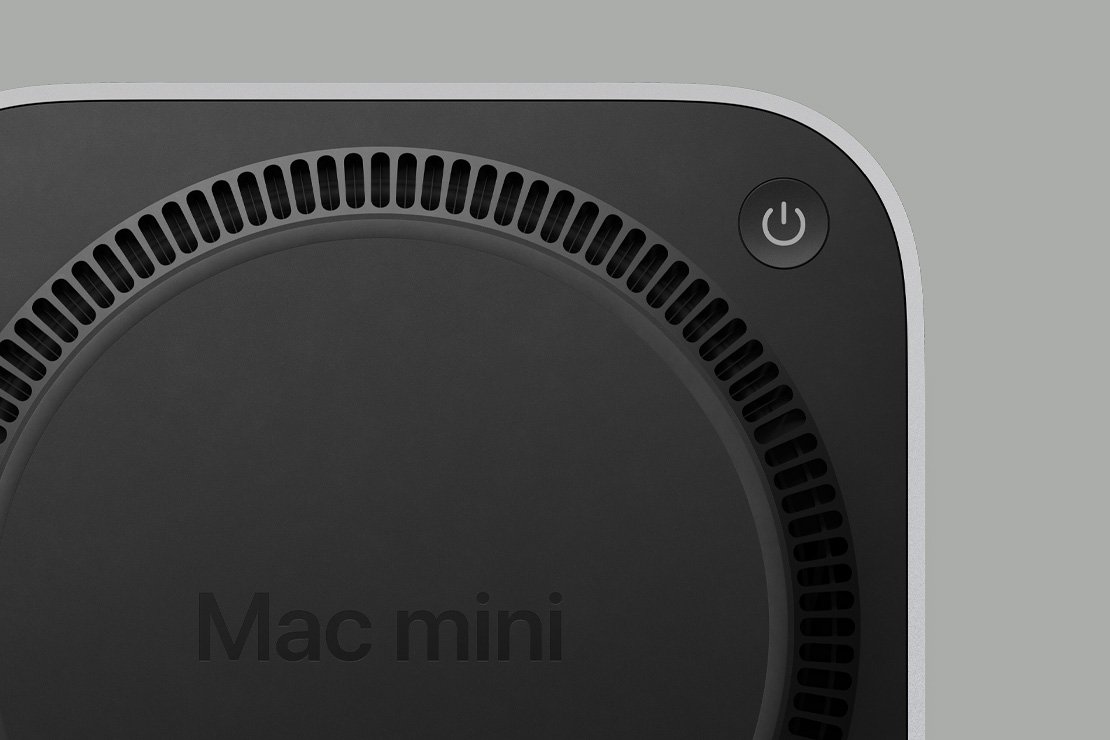
If you own a Mac mini M4 and you’ve ever mounted it under your desk, you already know the pain. Apple, in its infinite wisdom, put the power button on the underside of the machine. Not the back. The bottom. So every time you need to power it on, you’re basically performing a yoga pose under your desk, hunting around in the dark for a tiny button that frankly should never have been there. macOS Tahoe 26.5, released on 11 May 2026, quietly adds a new Power Control section inside System Settings, and while it won’t win any headlines, it does solve a very real and very annoying problem for desktop Mac owners.
What the Power Control Feature Actually Does
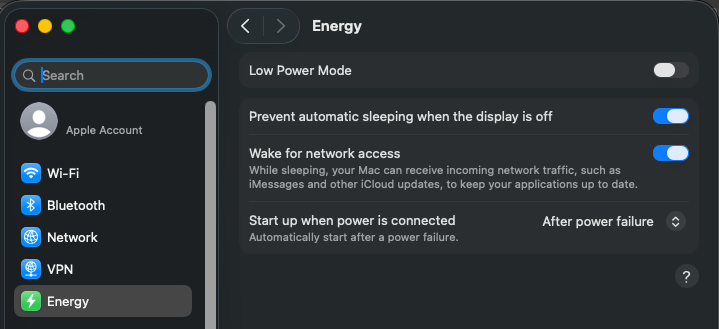
Head to System Settings > Energy on a compatible Mac desktop and you’ll now find a new Power Control menu with two genuinely useful options.
The first is external switch support. Apple has introduced the ability to pair an assistive accessory, essentially a physical switch, with your Mac mini, Mac Studio, or iMac, so you can power off or restart the machine without ever touching the physical power button. Apple has labelled this an accessibility feature, and fair enough, but it’s also a brilliant quality-of-life upgrade for anyone who has their Mac tucked away somewhere awkward. Mount a small switch to the side of your desk, pair it up, and the under-desk yoga routine is officially retired.
The second option is arguably more interesting for the tinkerers among us. You can now set your Mac to automatically boot up whenever it detects mains power. Toggle it on by going to System Settings > Energy, then next to “Start up when power is connected,” choose Always from the dropdown. Apple does recommend waiting about 30 seconds between shutting down and powering back on, just to let the power supply discharge properly.
My Mac Mini M4 lives under my desk connected to my network, so this one spoke to me immediately. I’ve been running it that way since I picked it up, and while it’s not like I’m constantly rebooting it, there have been enough times where I’ve needed to get it back up and running and had to contort myself to reach that button. It’s a small thing, but small things add up.
How to Actually Use This to Power On Remotely
Here’s where I need to be straight with you, because this feature is being talked up in ways that aren’t quite accurate. This is not a Wake-on-LAN replacement. macOS 26.5 hasn’t added some clever Apple networking protocol that lets you send a remote power-on command over your home network directly to the Mac.
What it has done is make the “power on when mains power is applied” option mainstream. And that is where a smart plug comes in.
If you have a smart plug on your home network, whether that’s a TP-Link Kasa, an Amazon Smart Plug, or anything else that lets you toggle power remotely via an app or voice command, you can effectively power on your Mac mini from anywhere. Flip the smart plug on via the app, mains power reaches the Mac, and it boots up automatically. Pair that with remote desktop access and you’ve got a surprisingly capable remote access setup using hardware many of us already have lying around.
The “appropriate hardware” is nothing exotic. It’s a smart plug. Given that I have Alexa devices throughout the house already, this is genuinely practical for me.
Compatible hardware is fairly specific, so worth checking before you get excited. You’ll need a Mac mini or iMac from 2024 or later, or a Mac Studio from 2025 onwards, all running macOS 26.5 or later. MacBooks are not included. This is desktop-only.
Why Apple Quietly Acknowledged the Power Button Problem
It’s hard not to read between the lines here. Apple’s own release notes mention this new feature is particularly helpful “when you don’t have easy access to the computer’s power button.” The M4 Mac mini’s bottom-mounted power button drew a lot of criticism when it launched, and rightly so. Most people don’t turn their Mac off multiple times a day, but when you do need that button and your machine is wall-mounted, tucked in a rack, or sitting under a monitor arm beneath a desk, the placement is genuinely frustrating.
Apple isn’t going to put out a press release saying “yeah, we got that one wrong.” But quietly shipping a software workaround with accompanying documentation that calls out inconvenient power button placement is about as close to an acknowledgement as you’re going to get from Cupertino.
My Verdict
This is exactly the kind of update I love. Unglamorous, practical, and it solves a real problem with minimal fuss. macOS 26.5 is a small release overall, but the Power Control additions are legitimately useful for anyone running a Mac mini or iMac in a setup where the physical button isn’t easy to reach. The smart plug trick for remote boot is clever, and the external switch support is something accessibility users have genuinely needed. It’s not going to set the tech world alight, but paired with a smart plug you probably already own, it’s a proper upgrade to how you manage your desktop Mac.
What to Do Right Now
If you own a Mac mini M4, iMac M4, or 2025 Mac Studio, update to macOS 26.5 today, then dig into System Settings > Energy and explore the Power Control options. If you don’t already have a smart plug controlling your Mac’s power socket, it’s worth picking one up. The combination genuinely works.
Want more practical tech tips like this, without the fluff? I send out a regular newsletter covering the stuff that actually matters for families who use tech every day. Sign up at techdadslife.beehiiv.com and join the growing Tech Dads Life community.
How I Have Set This Up at Home
My Mac Mini M4 lives under my desk on a custom-mounted shelf, connected to my home network for local server duties and general use. The power button accessibility problem was something I had genuinely been living with since I picked it up - not a daily annoyance, but enough of an occasional frustration that I had started just leaving it running rather than shutting it down properly.
The setup I am now running is straightforward. The Mac Mini is connected through a TP-Link Kasa smart plug, which I can toggle from the Kasa app or via Alexa. With macOS 26.5 and “Start up when power is connected: Always” turned on in System Settings > Energy, toggling the smart plug on gives me a reliable remote boot. Combined with Screen Sharing for remote desktop access, I now have a genuinely functional remote management setup using hardware I already owned.
The total cost of the upgrade: zero pounds. I had the smart plug. The update was free. The software took about two minutes to configure.
For families running a home lab or media server on a Mac mini: This is worth doing properly. Here is the setup in order:
- Update to macOS 26.5 from System Settings > General > Software Update.
- Open System Settings > Energy > Power Control and turn on “Start up when power is connected” and set it to Always.
- Connect your Mac mini’s power cable through a smart plug you can control remotely - TP-Link Kasa, Amazon Smart Plug, or anything compatible with your existing smart home ecosystem.
- Test it: shut down the Mac, use the app to cut and restore power to the smart plug, and confirm the Mac boots cleanly.
- Set up Screen Sharing or Remote Desktop access for when you need to actually use it after remote boot.
Apple has not made a big deal of this update, and you can understand why - acknowledging the under-desk power button issue too loudly would draw attention back to the original design decision. But the feature is real, it works cleanly, and for anyone with a tucked-away desktop Mac it is one of those small-but-meaningful improvements that actually changes how you use the machine. Recommended without hesitation.